


XPENG App v3
A walkthrough of the XPENG Mobile App
Version 3.0 was a major refresh of the XPENG mobile app for iOS and Android - new theme, redesigned My XPENG home screen, widgets and Apple Watch support. That redesign is still the foundation of today’s app (currently around 3.12). This guide explains the main sections and features so you can find your way around. For the pre-3.0 interface, see the XPENG App v2 guide. See also the XPENG App hub.
Download the official app for iOS or Android:


Jump to: What’s new · Main menu · My XPENG · AC · Settings · Map & Location · Parking · XCOMBO · Explorer · Services · Events · Account · Widgets · Apple Watch · Q&A
What’s new in 3.0
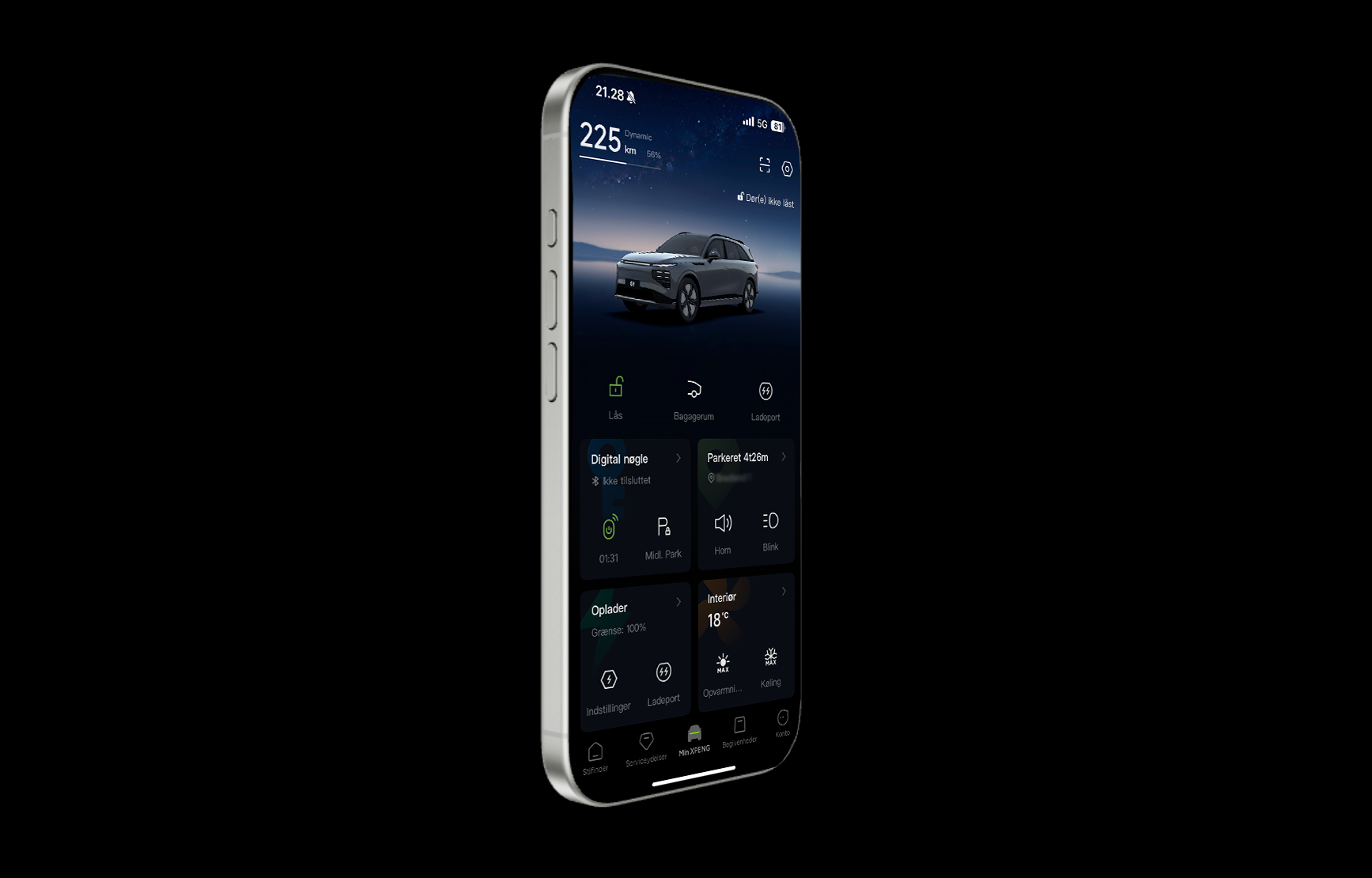
Key additions in version 3.0:
- New theme - A more modern design; you can switch back to the previous “classic” theme.
- Dark Mode and Light Mode - Follows system settings or can be chosen manually.
- Dynamic 3D vehicle view - The car rendering updates in real time as features are activated.
- Customizable shortcut bar - Pick up to six shortcuts at the top of My XPENG.
- Widgets - Home-screen widgets for battery status and lock state.
- Apple Watch - Basic remote control (lock, climate, charging) from the watch.
- Extended charging controls - More scheduling options and charge-limit selection.
- Profile login on 4G unlock - Unlocking via the app logs in the selected driver profile in the car.
- Consumption data - New tab with energy use and distance history.
Screenshots from early v3: Images in this guide were captured around the v3.0 redesign launch. The live app is now 3.12+ on iOS and Android - some labels and menus may have changed since these captures.
Main menu
- Explorer - links to XPENG pages on vehicles, leasing, and service
- Services - workshop booking, service history, roadside assistance
- My XPENG - home screen for controlling the vehicle
- Events - events, owner programmes, questionnaires
- Account - profile, notifications, orders, app settings
Below you’ll find a detailed walkthrough of the app’s five main sections.
Since My XPENG is the app’s home page and the hub for vehicle control, we cover it first.
My XPENG
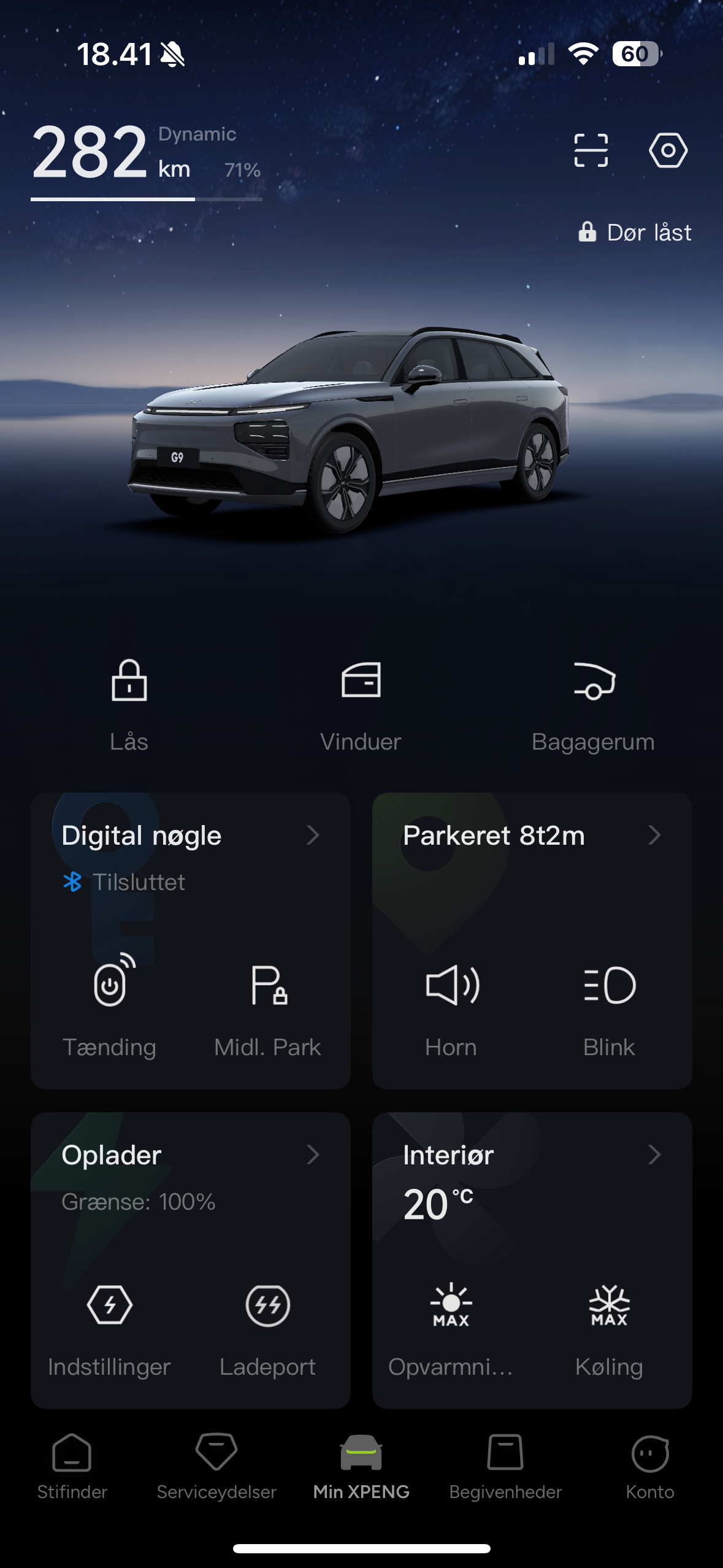
Most of the changes are in this part of the app. This is where you operate your XPENG and view information about the car.
- Updated, interactive 3D car rendering
- Range (WLTP or dynamic) and SOC percentage
- Connection status: Bluetooth = blue icon, 4G = gray icon
- QR scan for account switching
- Parking-time counter and map view showing car and user position (owner only)
- Remote lock/unlock (+ Remote Start via 4G)
- P-Comfort (from XOS 5.9.5; replaced XPARK) - locks without the alarm and keeps the AC running
- Open/close windows, trunk, and charge port
- Horn and light flash, TPMS check, 12 V outlet, battery pre-heating
- Charging limit and charging/pre-heating schedules
- Climate control, XGUARD, tow bar, parking assistant
- XCOMBO macros and consumption statistics
AC
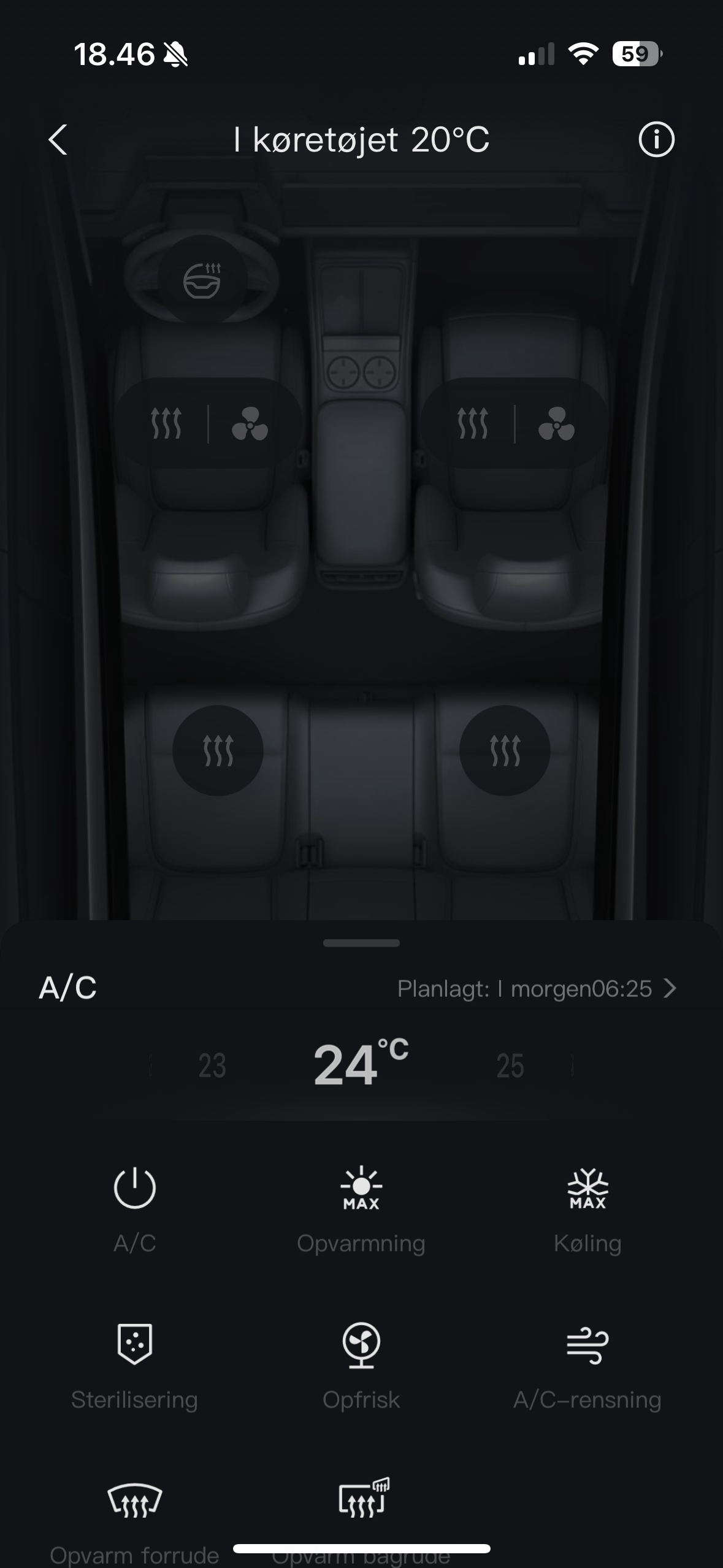
Control everything from temperature, seat and steering-wheel heating to “Max Heat/Cool,” sterilization, window refresh, and schedules. Heating/cooling functions automatically turn off after 15 minutes.
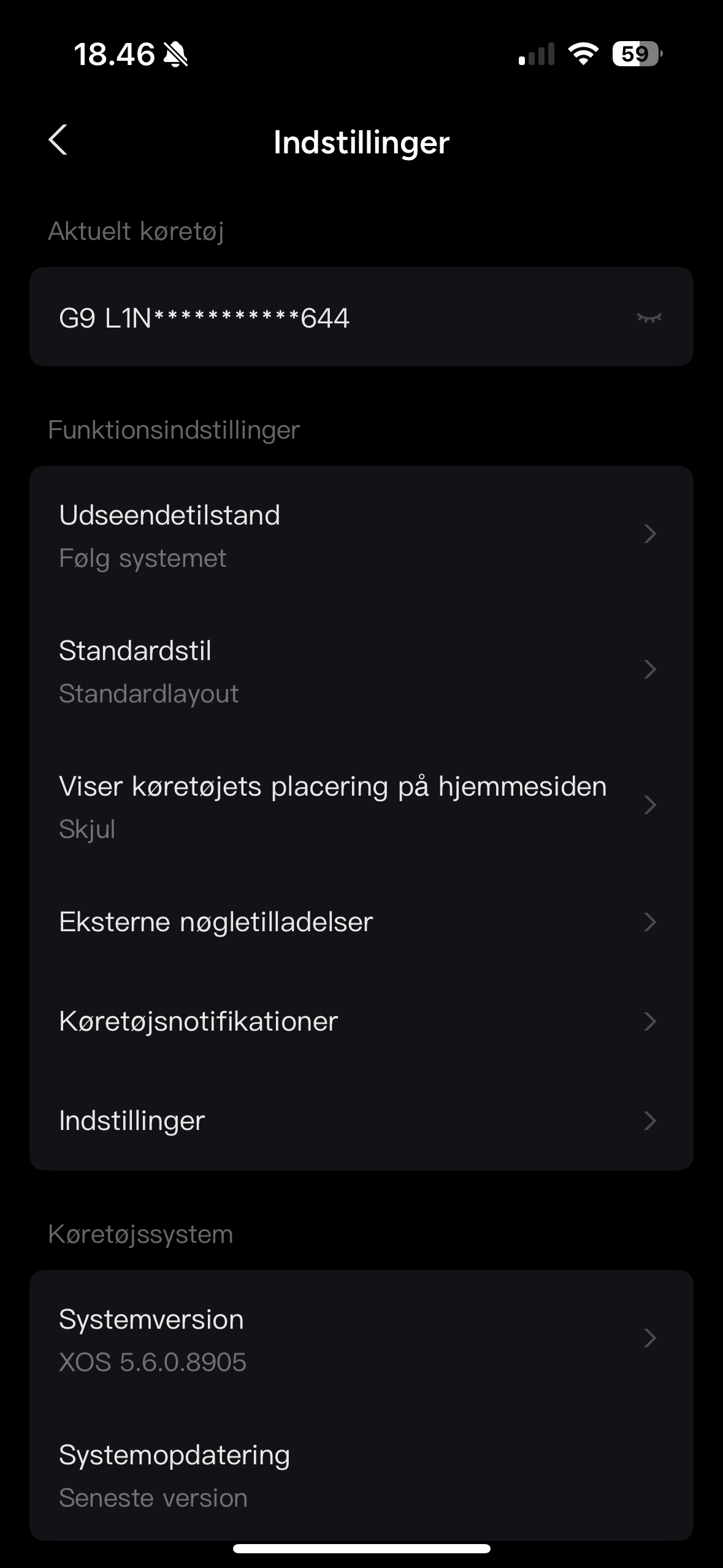
Settings
- VIN (Vehicle Identification Number)
- App color scheme and theme
- Show vehicle location on the home screen
- Share access with up to five users
- XOS version and release notes
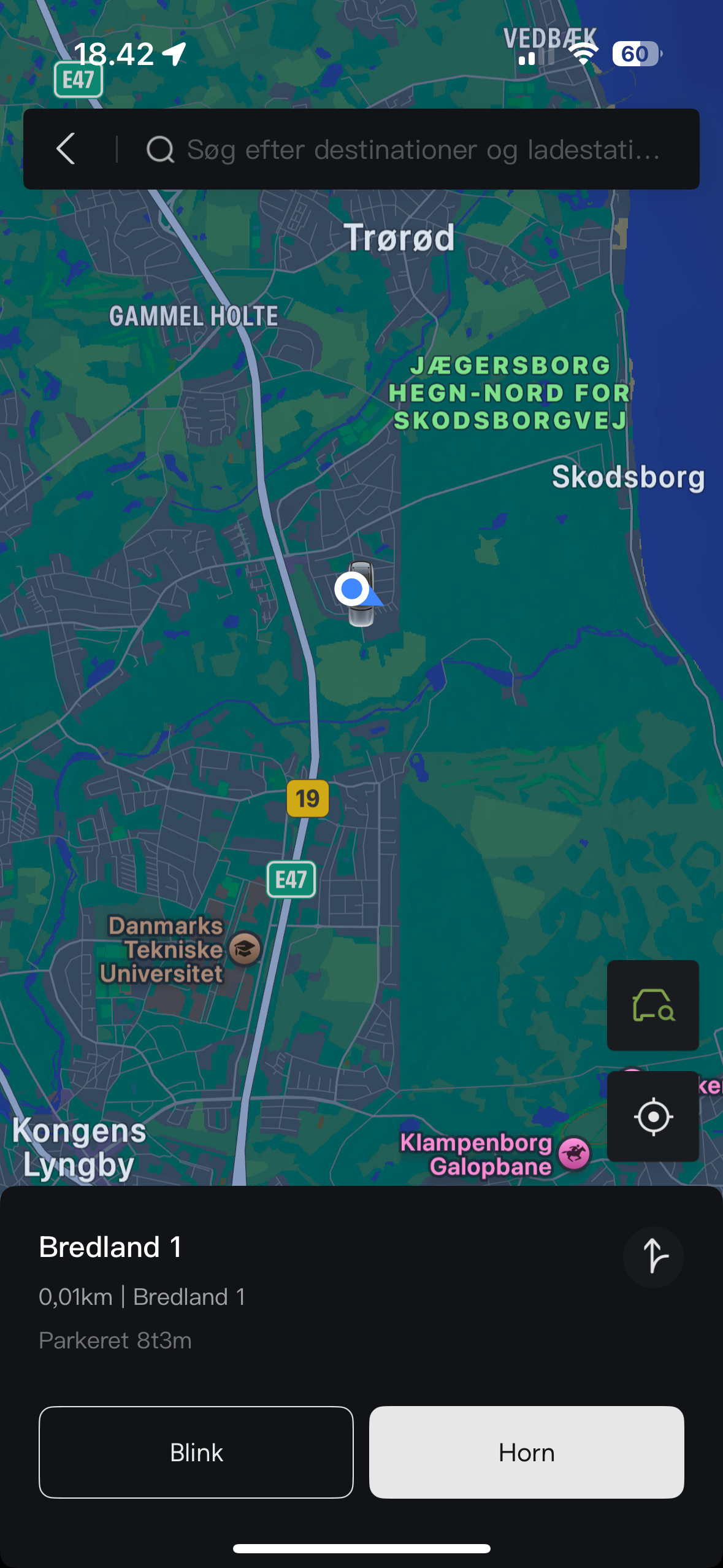
Map & Location
- View and send destinations to the car
- Locate the vehicle (primary account only)
- Flash lights, honk horn, share location to Google/Apple Maps
- Search for addresses and chargers, then send them to the navigation system
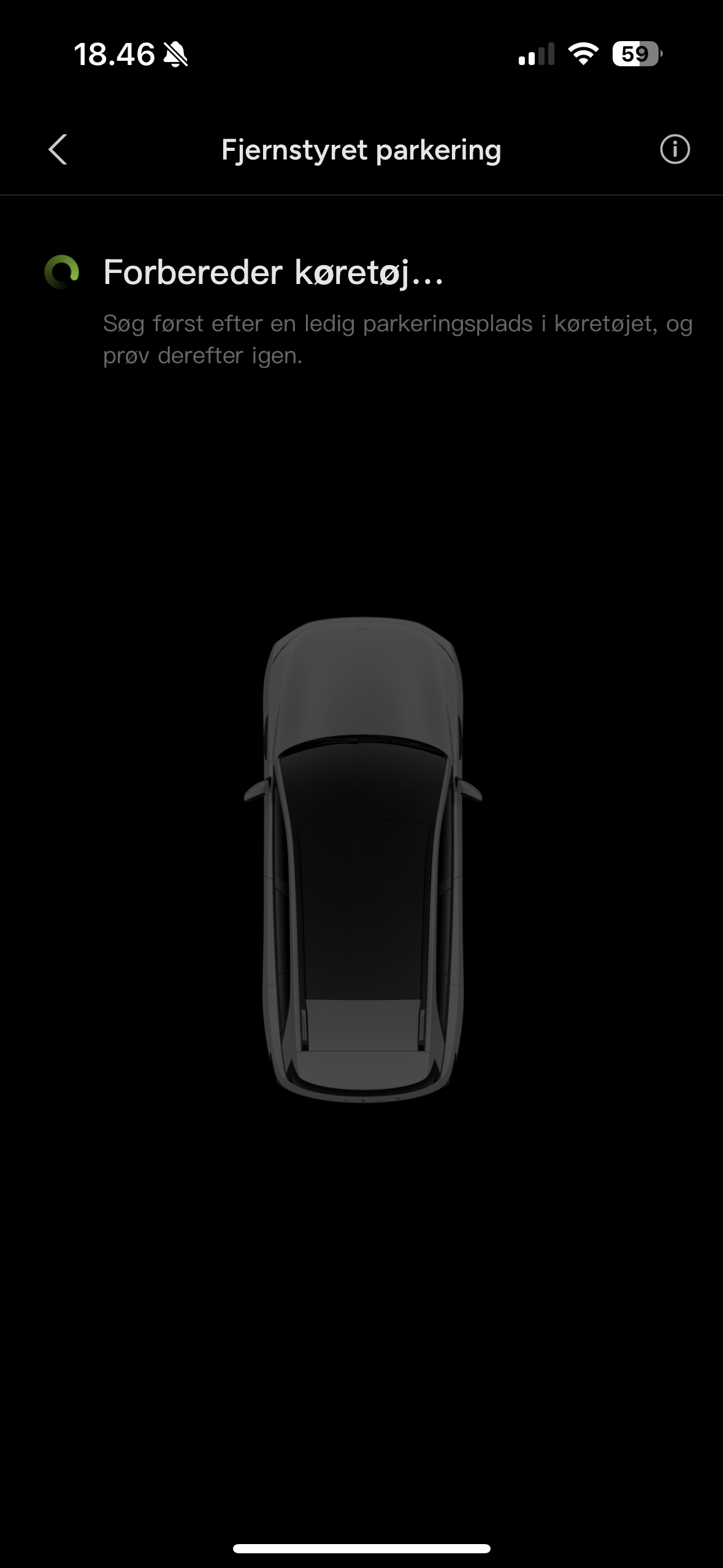
Parking assistance
- Entry/exit maneuver: slow straight-line driving forward or backward; stops 30 cm before an obstacle
- Remote parking assistant: the car parks itself in the selected bay in a parking lot
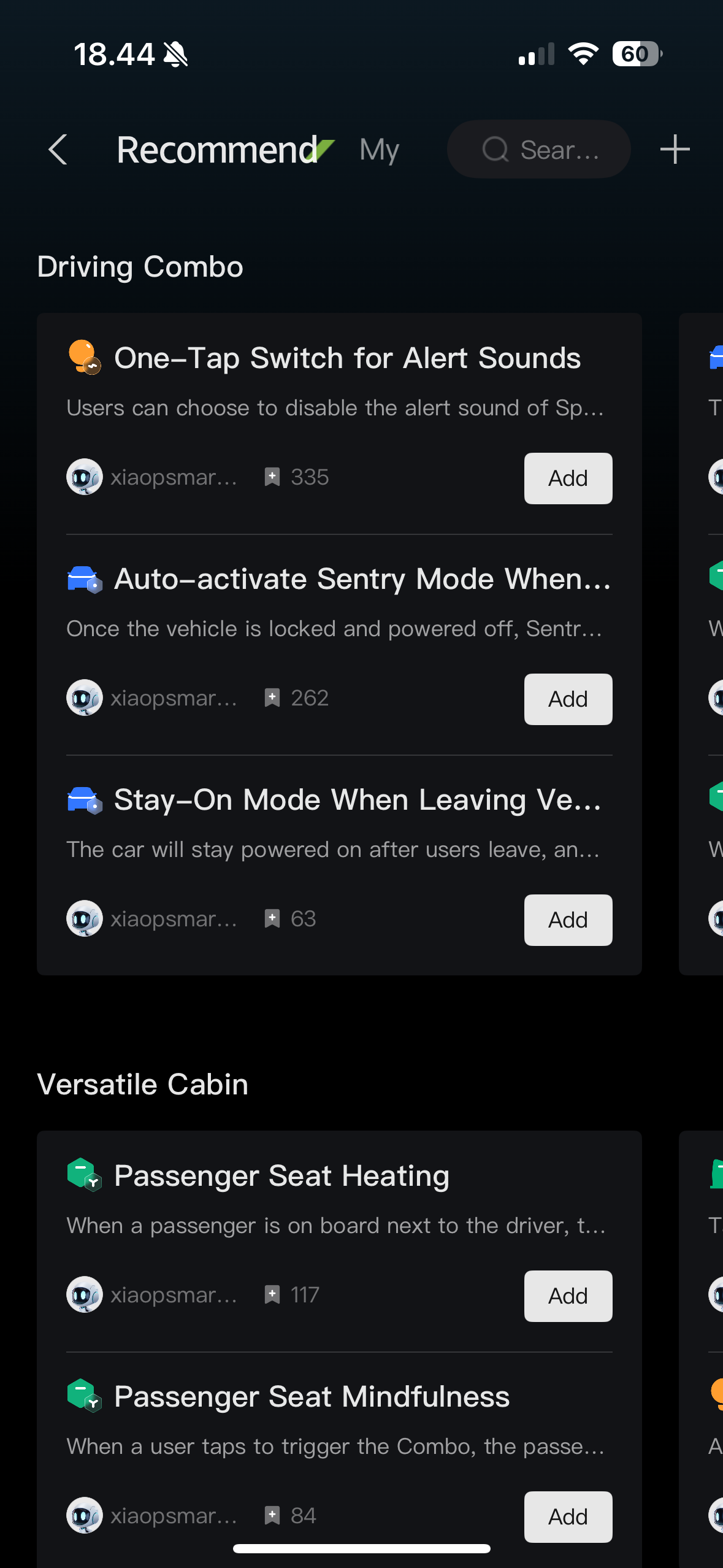
XCOMBO
Automate actions by linking together Conditions and Actions.
See the complete list of options here: go.xpeng.guru/xcombooptions.
Get inspiration for your own XCOMBOs: go.xpeng.guru/xcombocollection.
As things stand, every XCOMBO you create is personal. This means that if someone else has driven the car and is currently logged in to the vehicle, the XCOMBOs stored on your account can’t be activated until you log back in.
There are two temporary work-arounds:
- Ensure every driver has the same XCOMBOs set up, so it doesn’t matter who triggers them.
- Use the same XPENG account across all users. Note that you’ll then need to switch driver profiles manually in the car after someone else has driven, because the system remembers the last profile used.
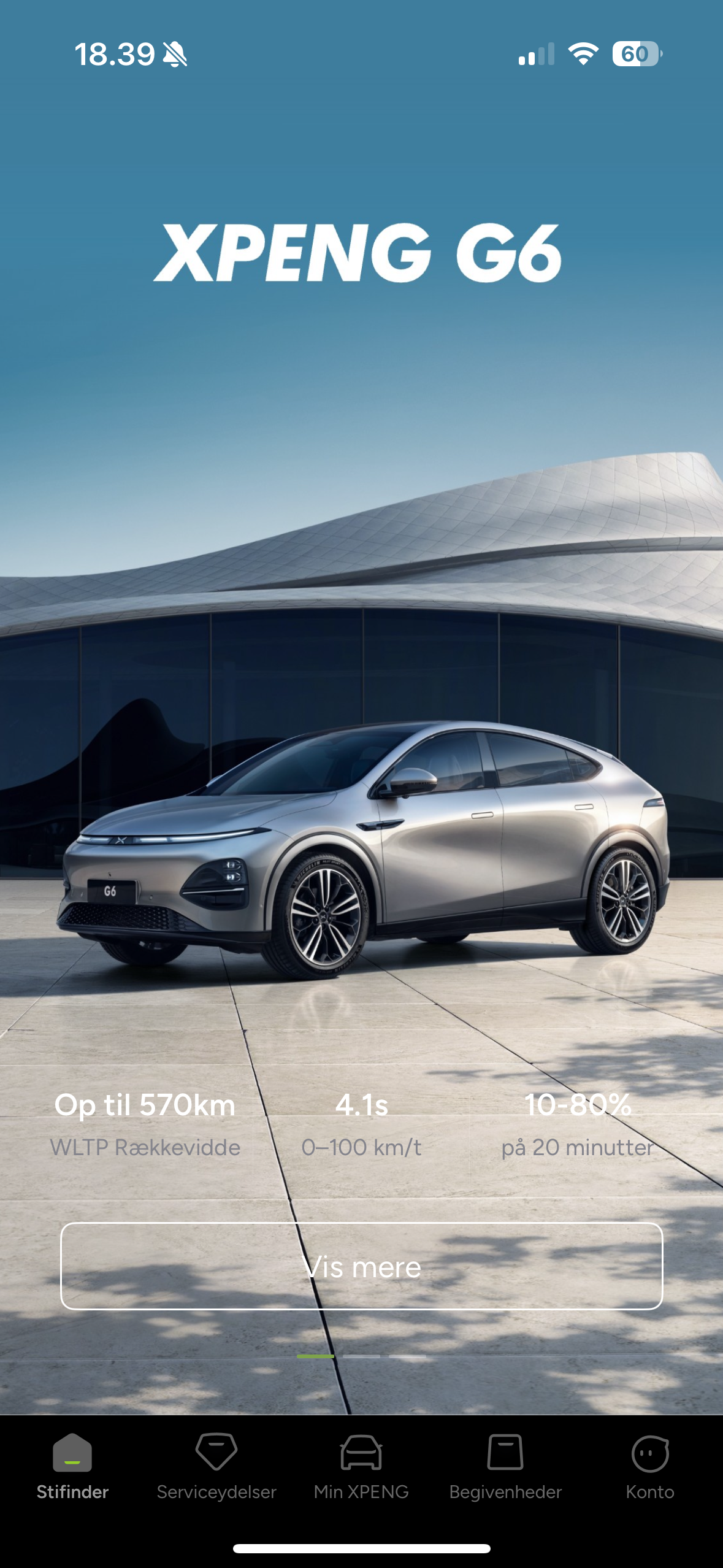
Explorer
Explorer is a shortcut to XPENG’s website content, where you can read about the cars, customer service, financing and leasing, and locate service centers.
Services
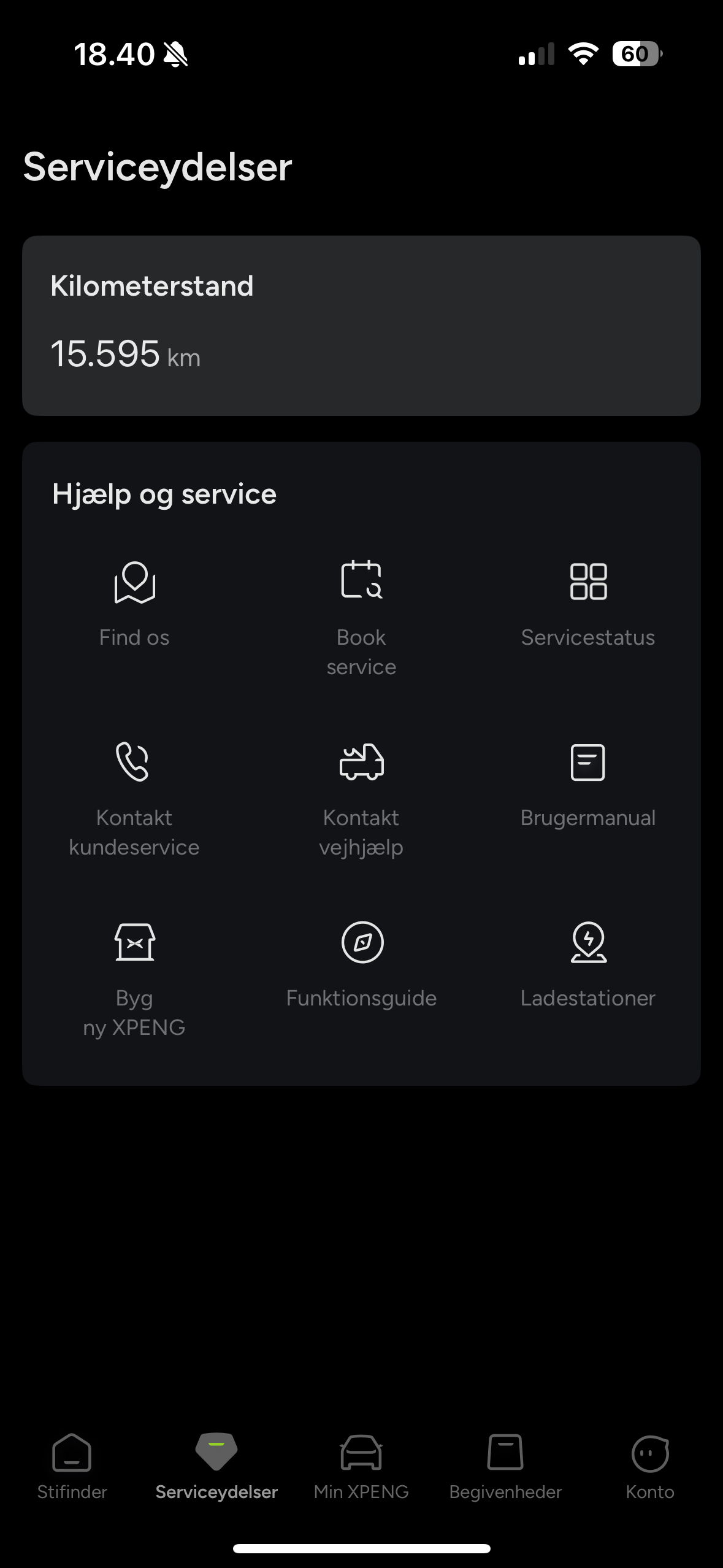
- View the vehicle’s odometer reading
- Find addresses for dealers and service centers
- Book service and repair appointments
- View service history
- Contact information for XPENG and roadside assistance
- Link to the manual
- Order a new XPENG
- Links to guides
- Search function for charging stations
Events
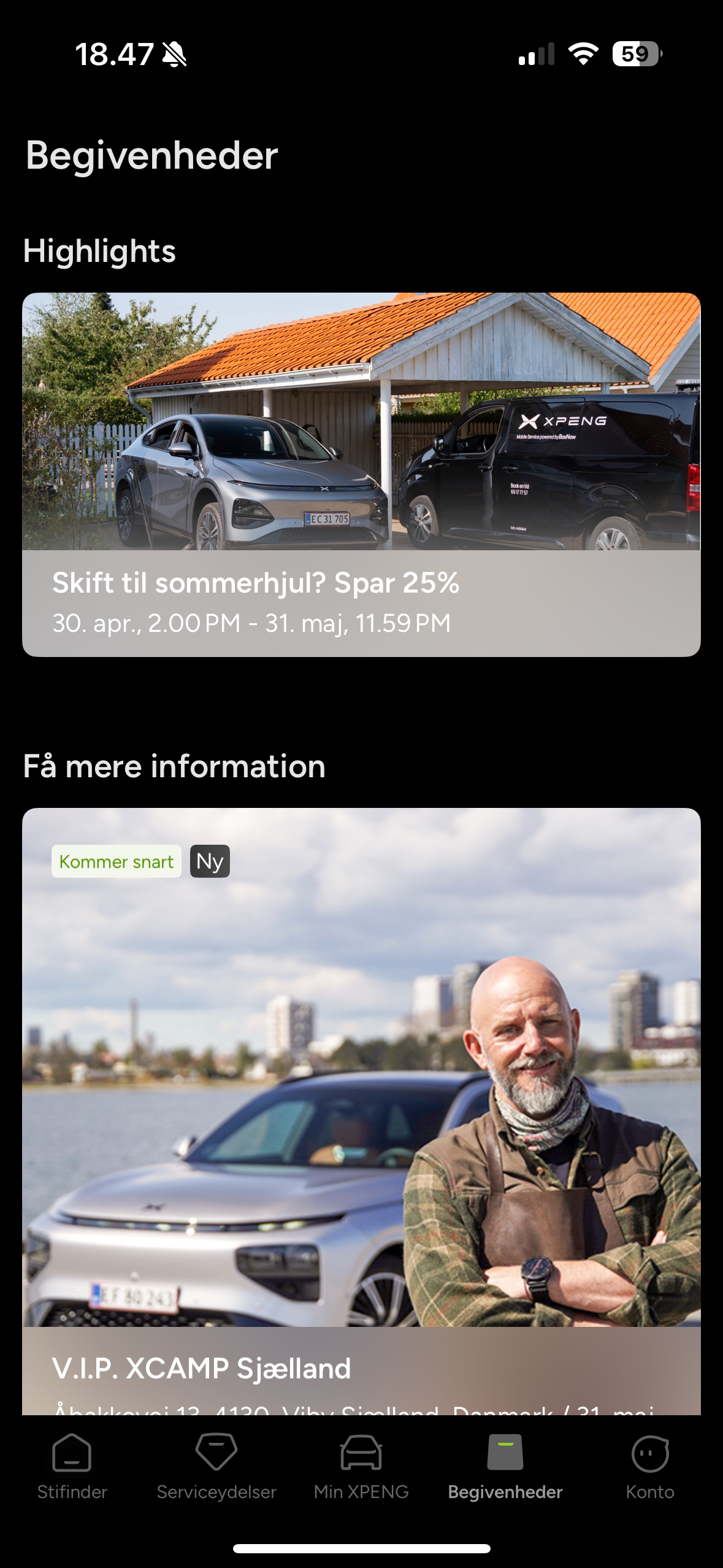
Under Events, you can view invitations to social gatherings, participate in user surveys, and register for XPENG owner programmes when registration opens.
Account
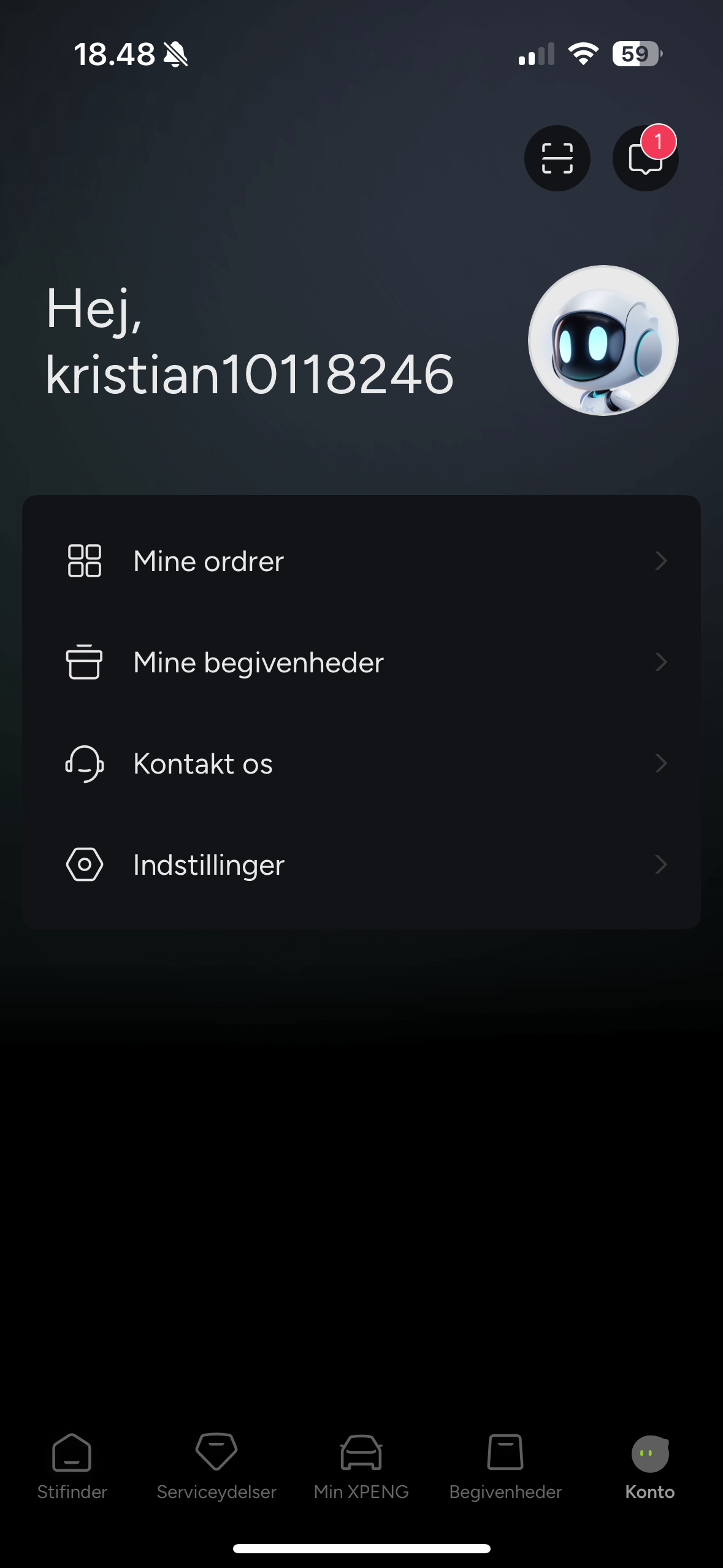
- Notification center with messages from the car and from XPENG
- Order(s) and their status
- Events you’re registered for
- Contact XPENG by email and send them a log file
- App and account settings
- Region / language selection
- Notification-center configuration
Widgets
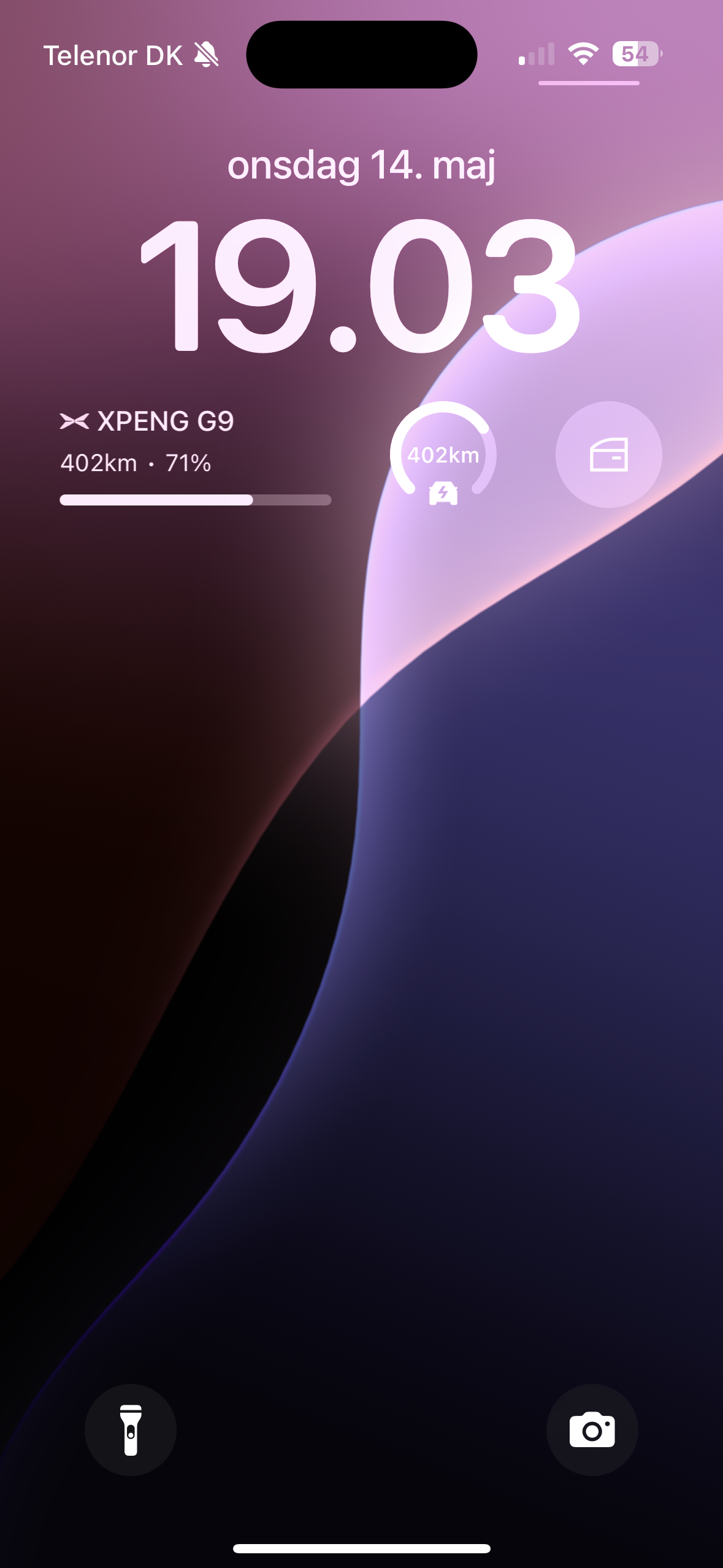
Lock screen: SOC + range, window ventilation
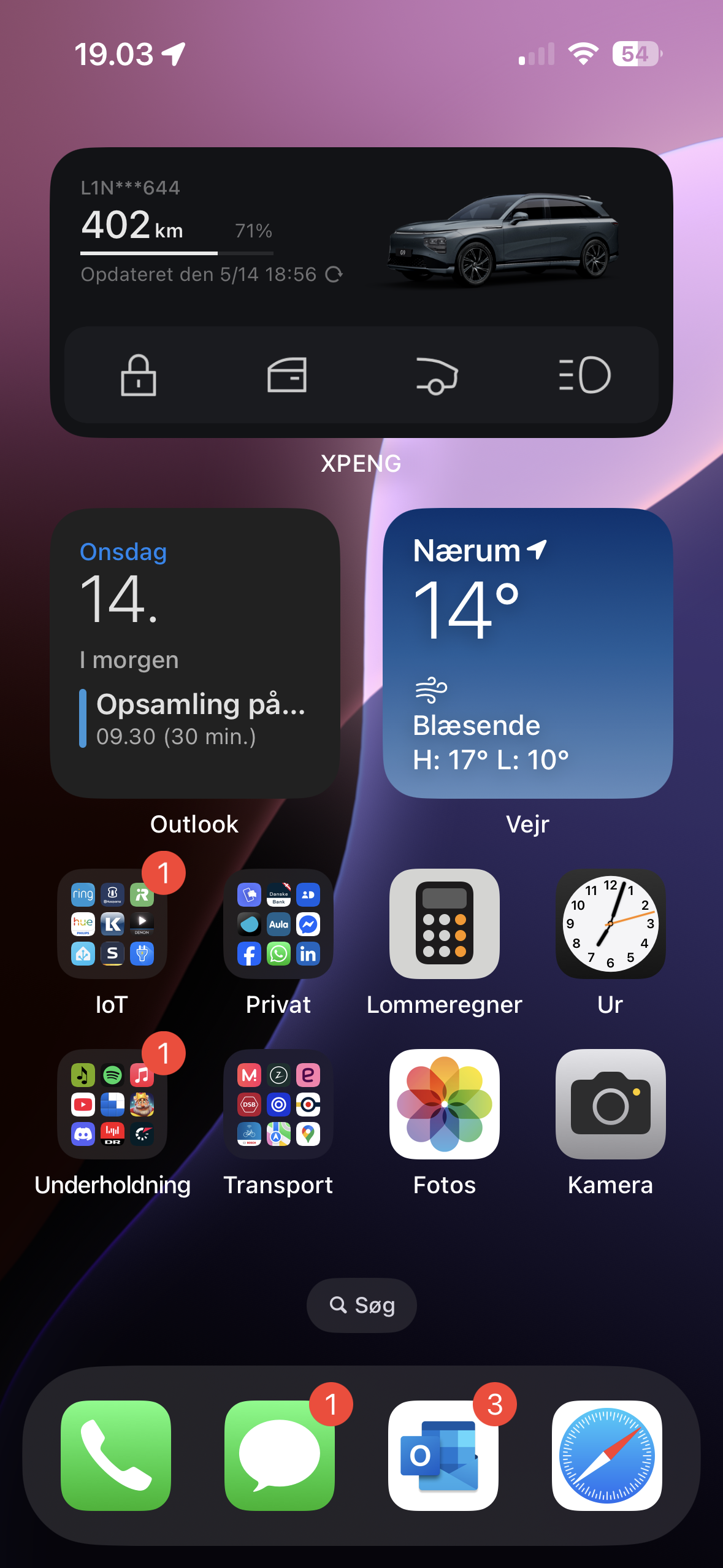
Home screen: SOC, lock/unlock, windows, trunk, light flash - layout and order can be customized.
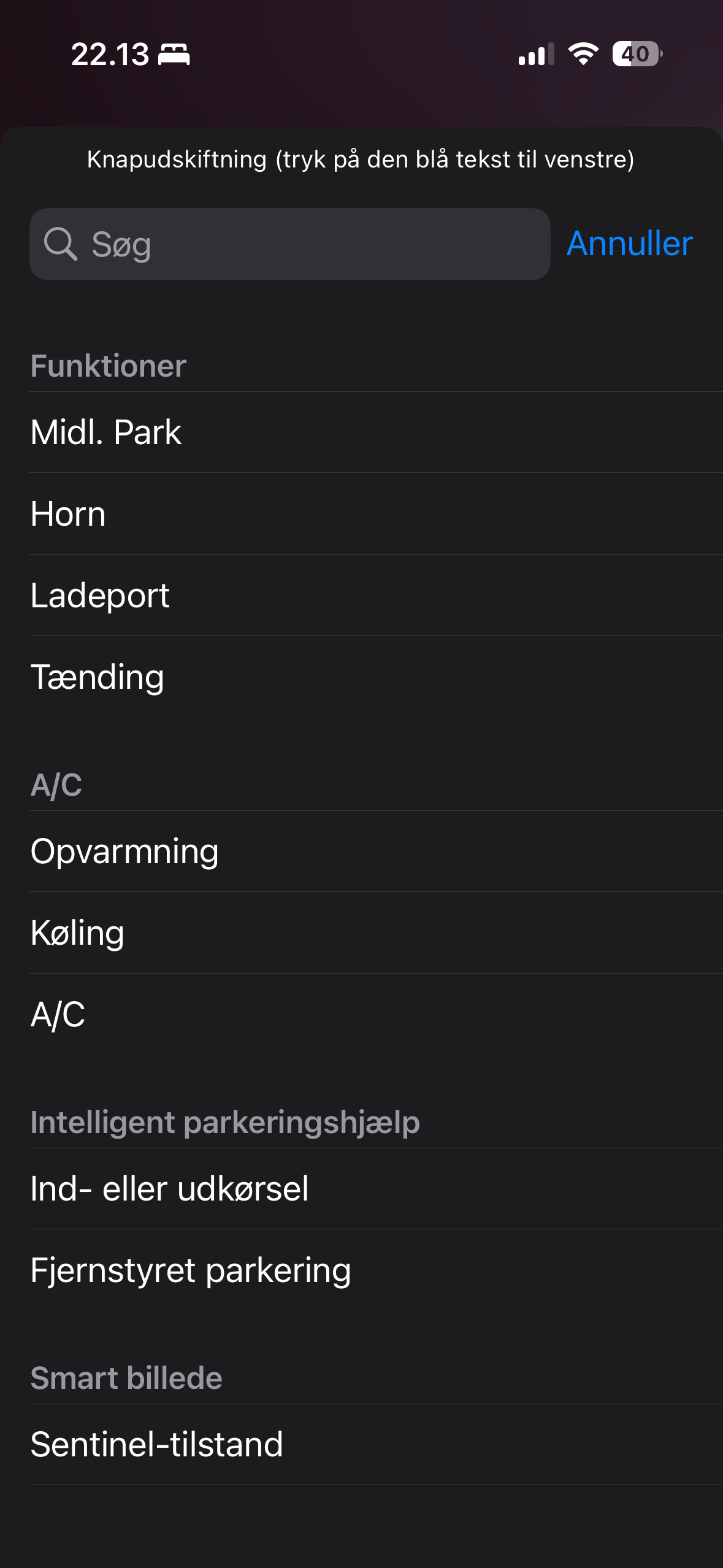
You can change the order and choose between different layouts and functions.
Apple Watch
The app now runs on your wrist. Choose one of the modular faces and you can even design your own XPENG version.
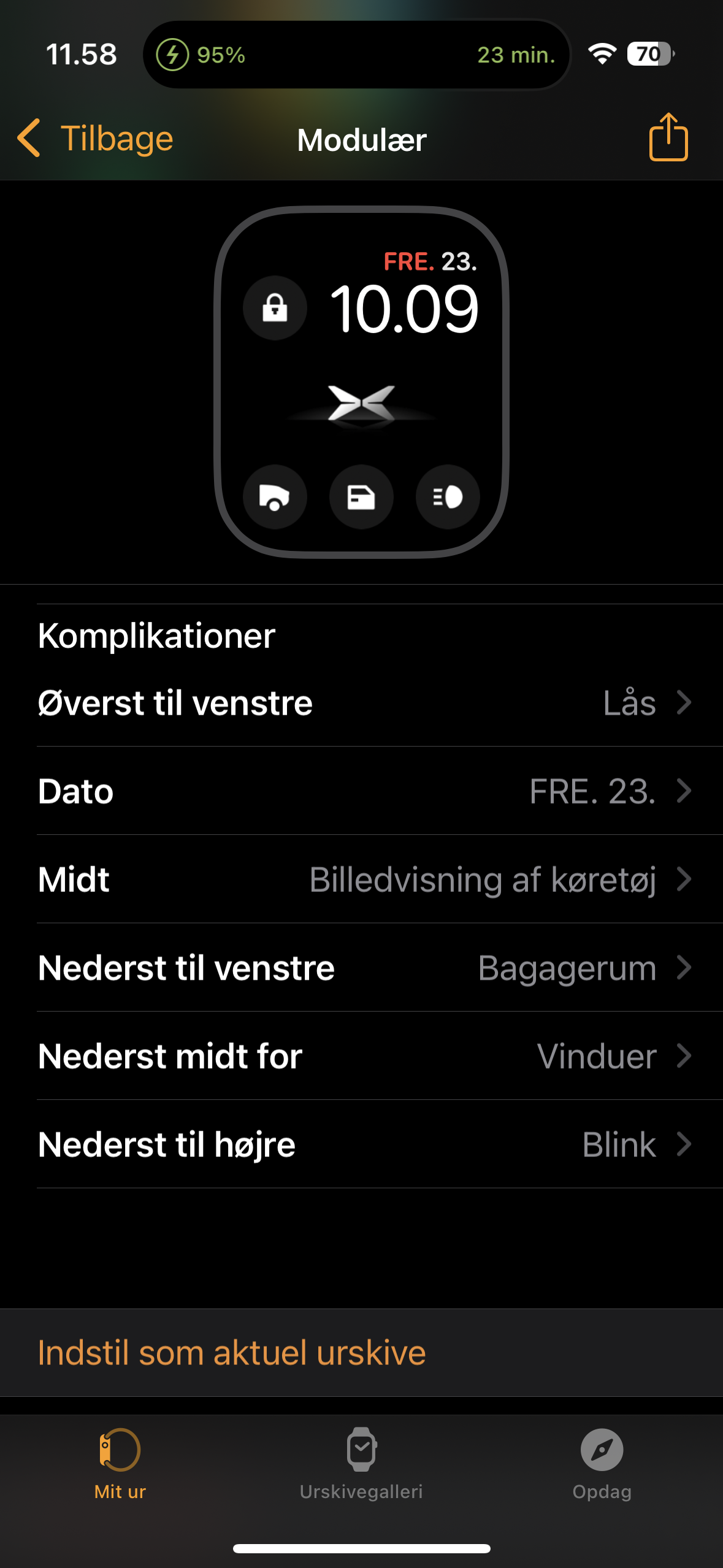
On a compatible Apple Watch, you can build your own XPENG complications.
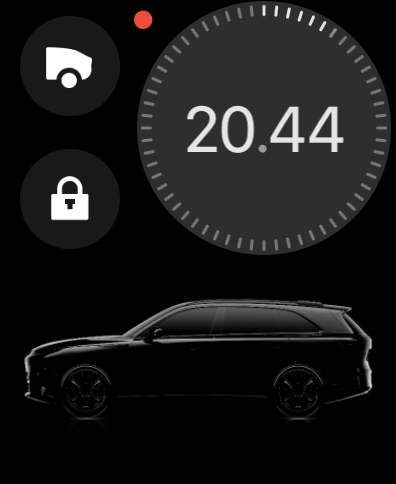
Modular face example
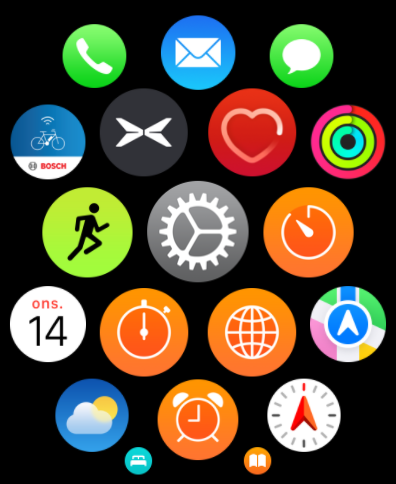
App main menu
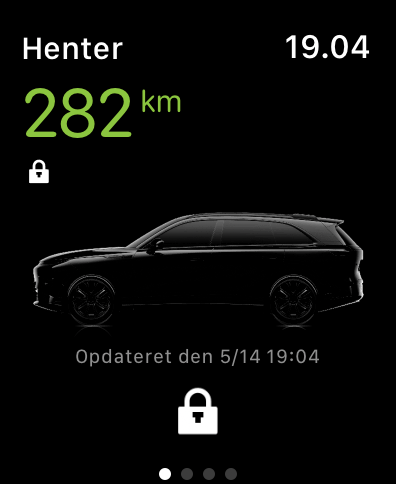
Main screen: View the vehicle’s remaining (Dynamic) range and unlock the car.
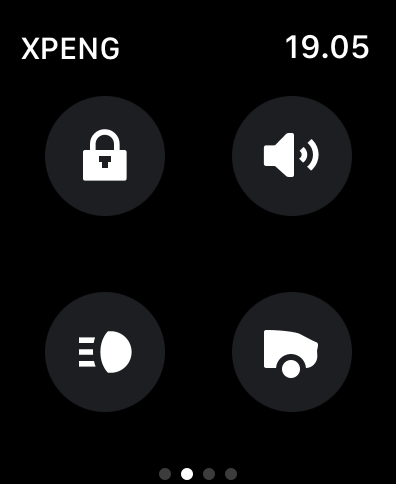
Second menu: Control the lock, horn, lights, and trunk.
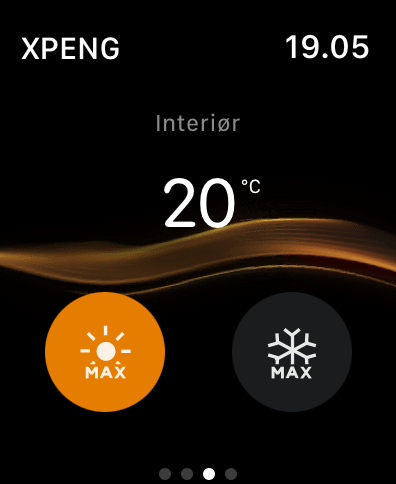
Third menu: Operate the climate system, activate Max Cool or Max Heat, and check the cabin temperature.
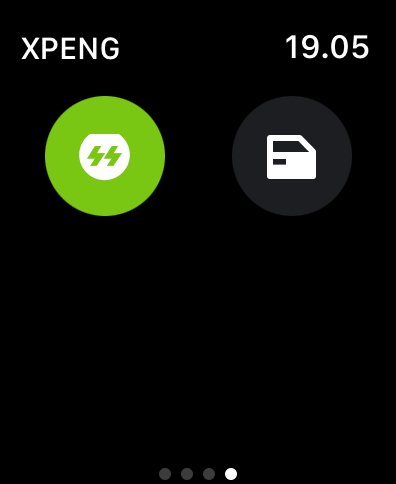
Last menu: Open the charge port or roll down the windows.