



Emergency Key
Unlock and start via the app hotspot when the Bluetooth digital key is unavailable.
Applies to XPENG App 3.3.0+
Wi-Fi fallback when the Bluetooth digital key fails. Emergency Key lets you unlock, start, or lock via a temporary vehicle hotspot. Part of the Guides collection under Software. See also the Digital Key guide for normal keyless use.
Jump to: What is it? · When to use · Find in app · Unlock & start · Lock · Notes from XPENG
What is the Emergency Key?
The Emergency Key is a built-in backup in the XPENG mobile app. Use it when the standard Bluetooth digital key is not working.
Typical situations:
- You do not have the physical key fob
- Bluetooth pairing or connection fails
- Your phone has lost connection to the vehicle
- Software or network issues block the normal key
The vehicle creates a temporary Wi-Fi hotspot; your phone connects so you can unlock, start, or lock the vehicle.
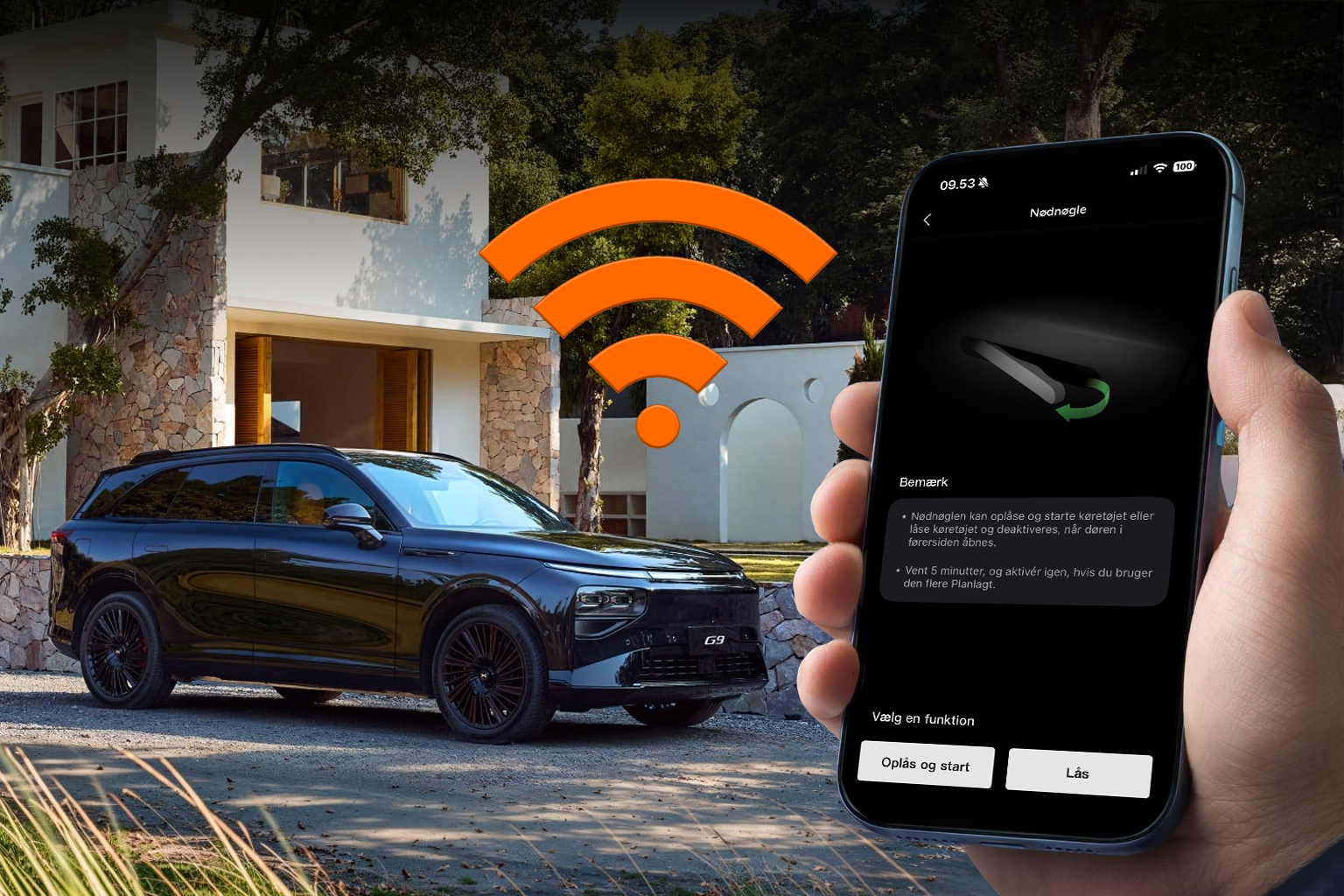
When should you use it?
XPENG recommends Emergency Key only in genuine emergencies. In the app:
- Stay close to the vehicle
- Avoid other phones and watches nearby
- Emergency Key can both enable and disable access
It works only as a critical fallback for the normal digital key.
Find Emergency Key in the app
- Open the XPENG app
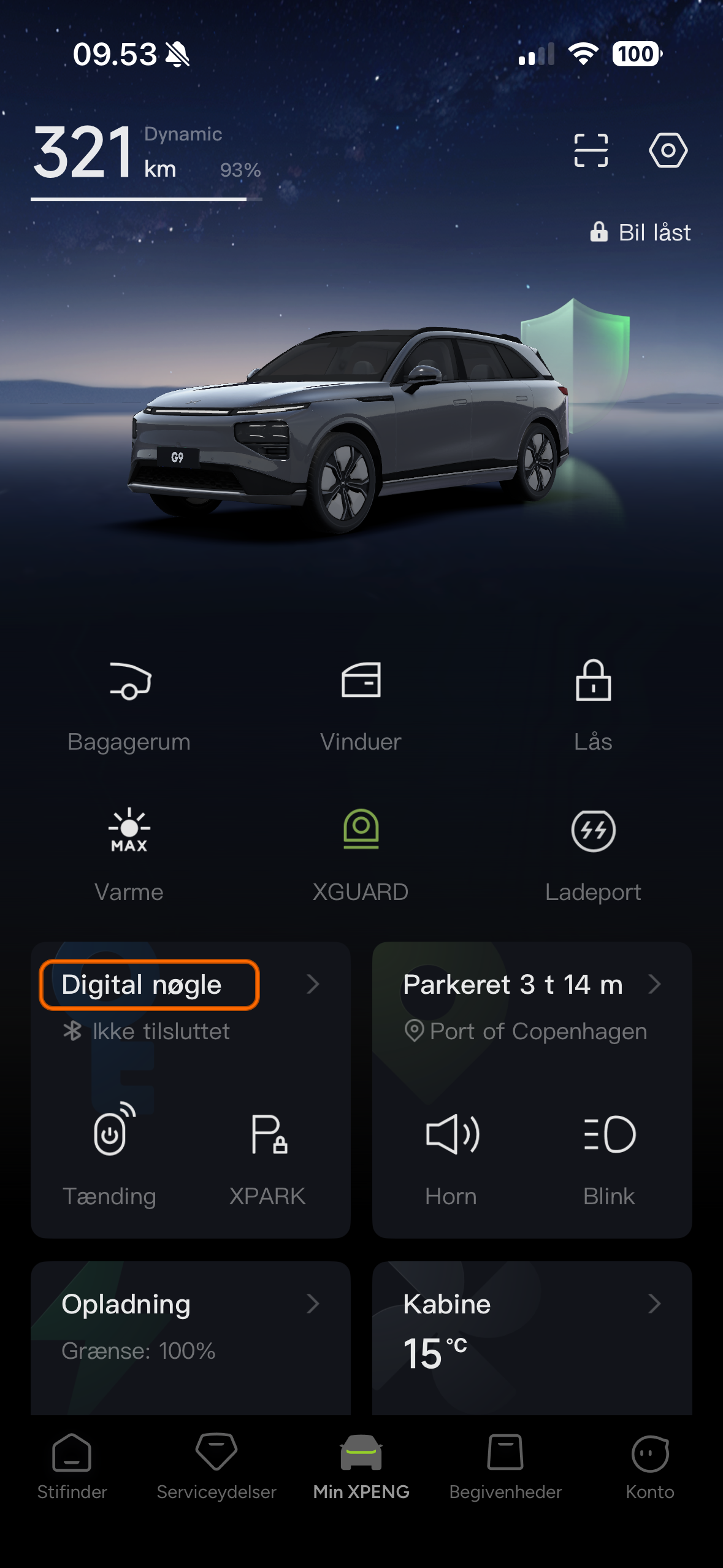
- Go to My XPENG
- Select Digital Key
- Tap the icon at the top right (key inspection)
- Choose Emergency Key (link at the bottom of the screen)
1-3. Open Digital Key
Open the XPENG app and go to My XPENG. Tap Digital Key in the main menu.
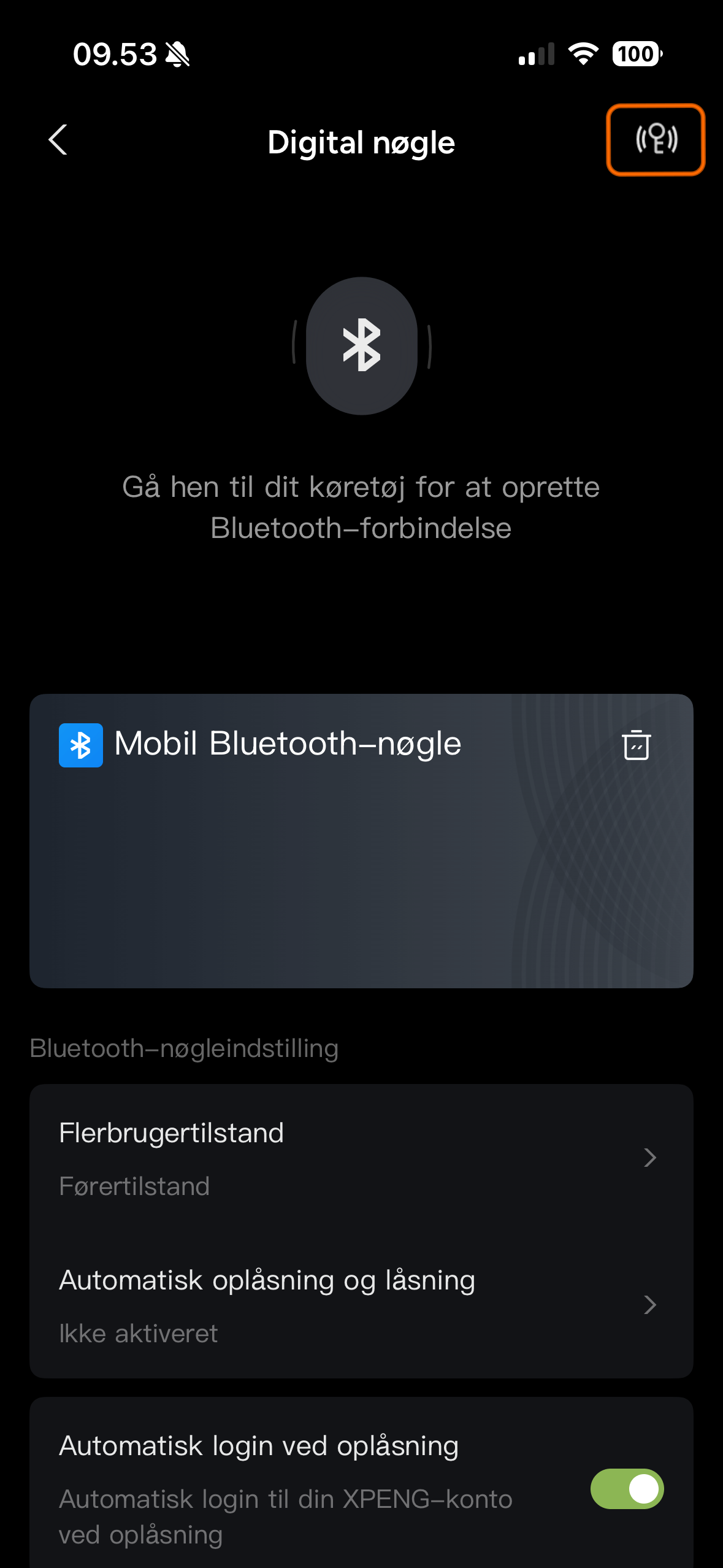
4. Key inspection
On the Digital Key screen, tap the key inspection icon at the top right. XPENG uses this flow to diagnose Bluetooth key status.
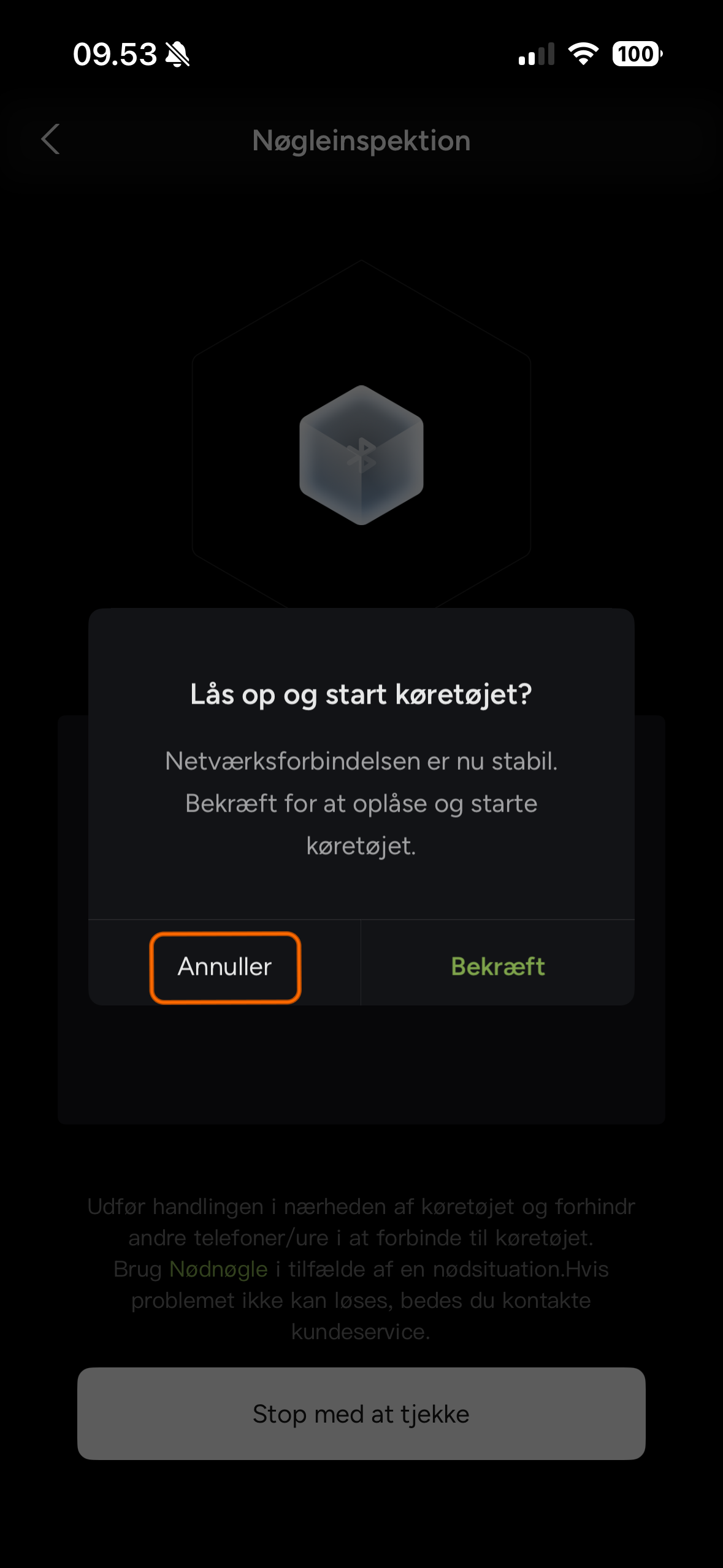
Cancel the wizard
Key inspection may prompt Unlock and start. Tap Cancel - you are heading to Emergency Key, not starting the car from this wizard.
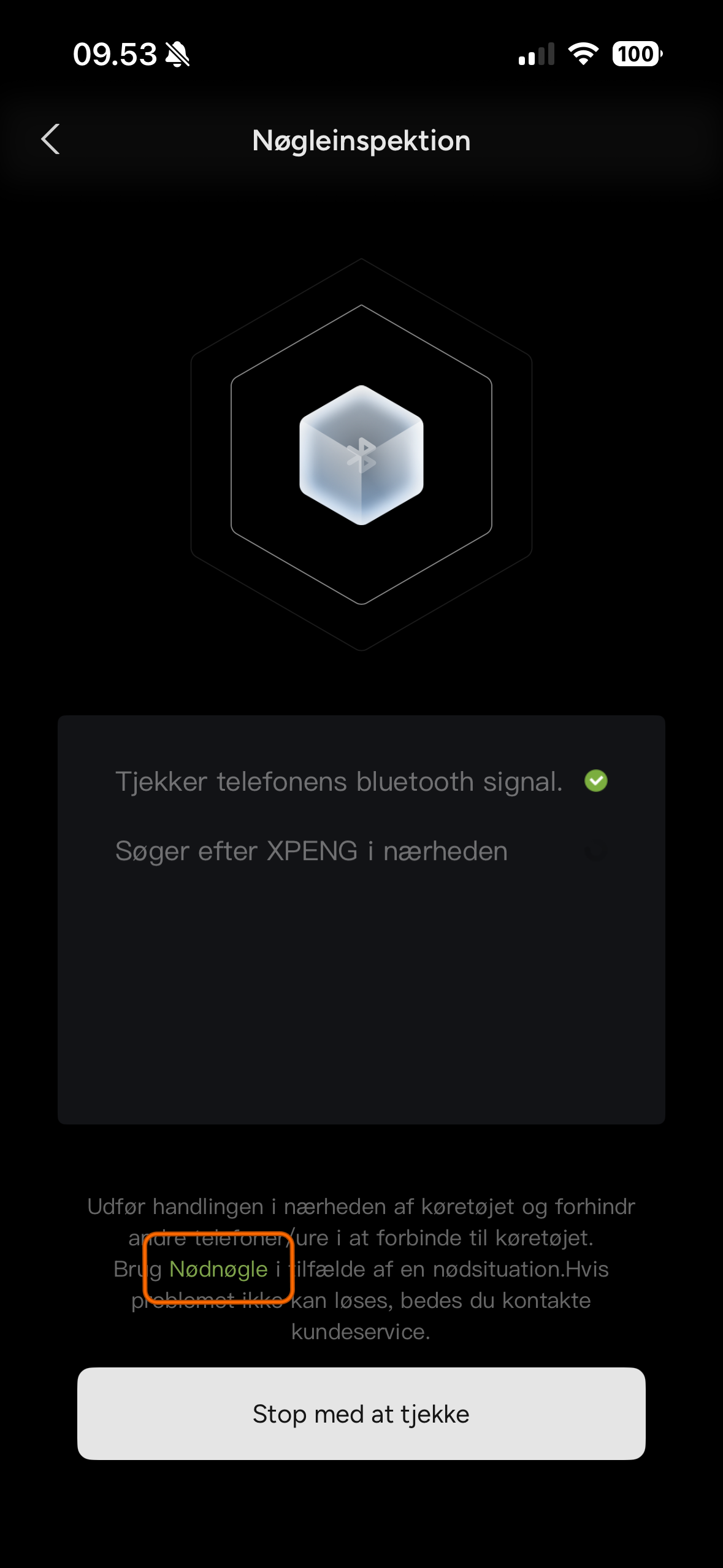
5. Emergency Key
Scroll to the bottom and tap Emergency Key. Read the on-screen warnings before continuing.
Unlock and start the vehicle
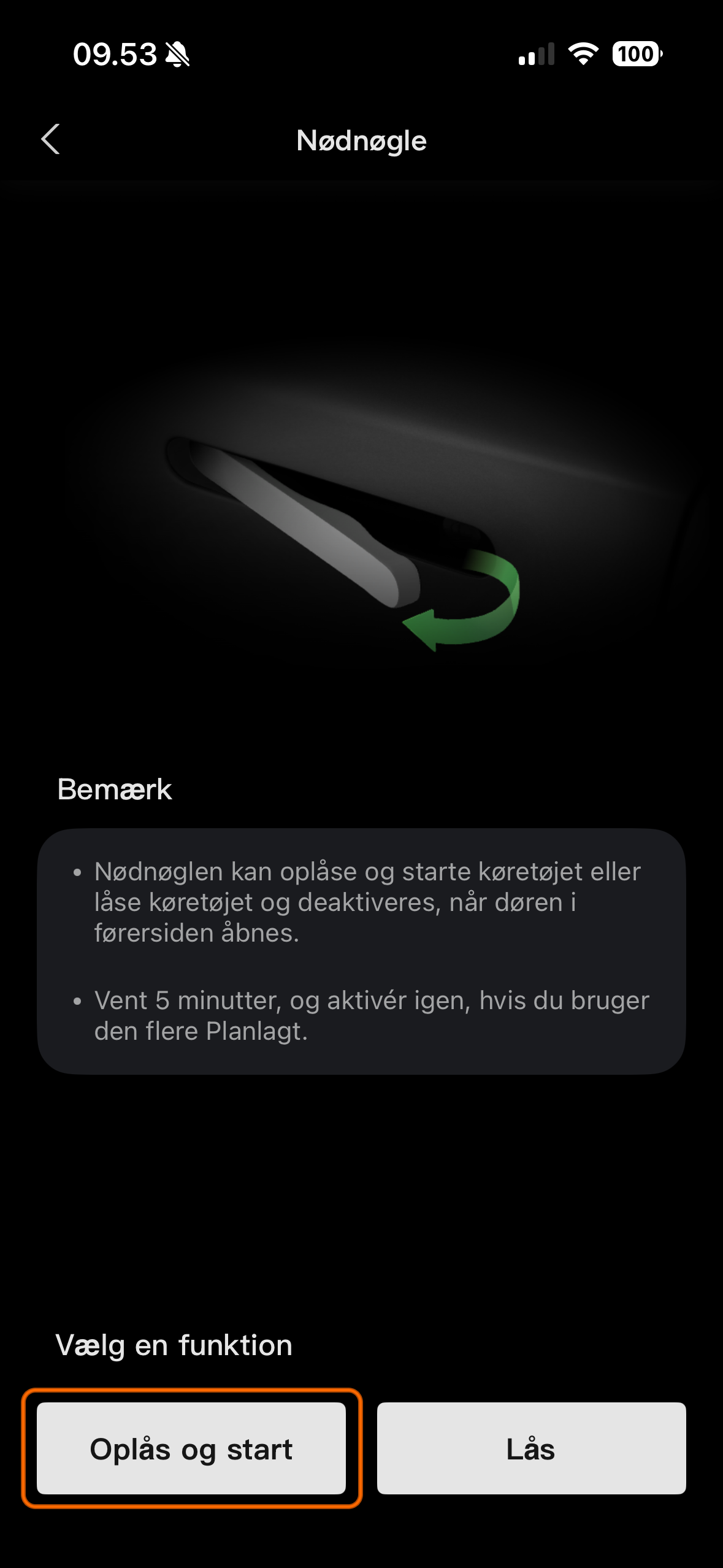
- In the Emergency Key menu, select Unlock and start
- Confirm the action in the app
- Press and hold the tailgate (rear hatch) button for 6 seconds - the vehicle hotspot turns on
- On your phone, open Settings → Wi-Fi
- Connect to the vehicle hotspot (name and password are shown in the app)
- Return to the XPENG app and tap Connect
When connected, the vehicle can be unlocked and started.
Unlock and start menu
Confirm your selection, and the app prompts you to hold the tailgate button.
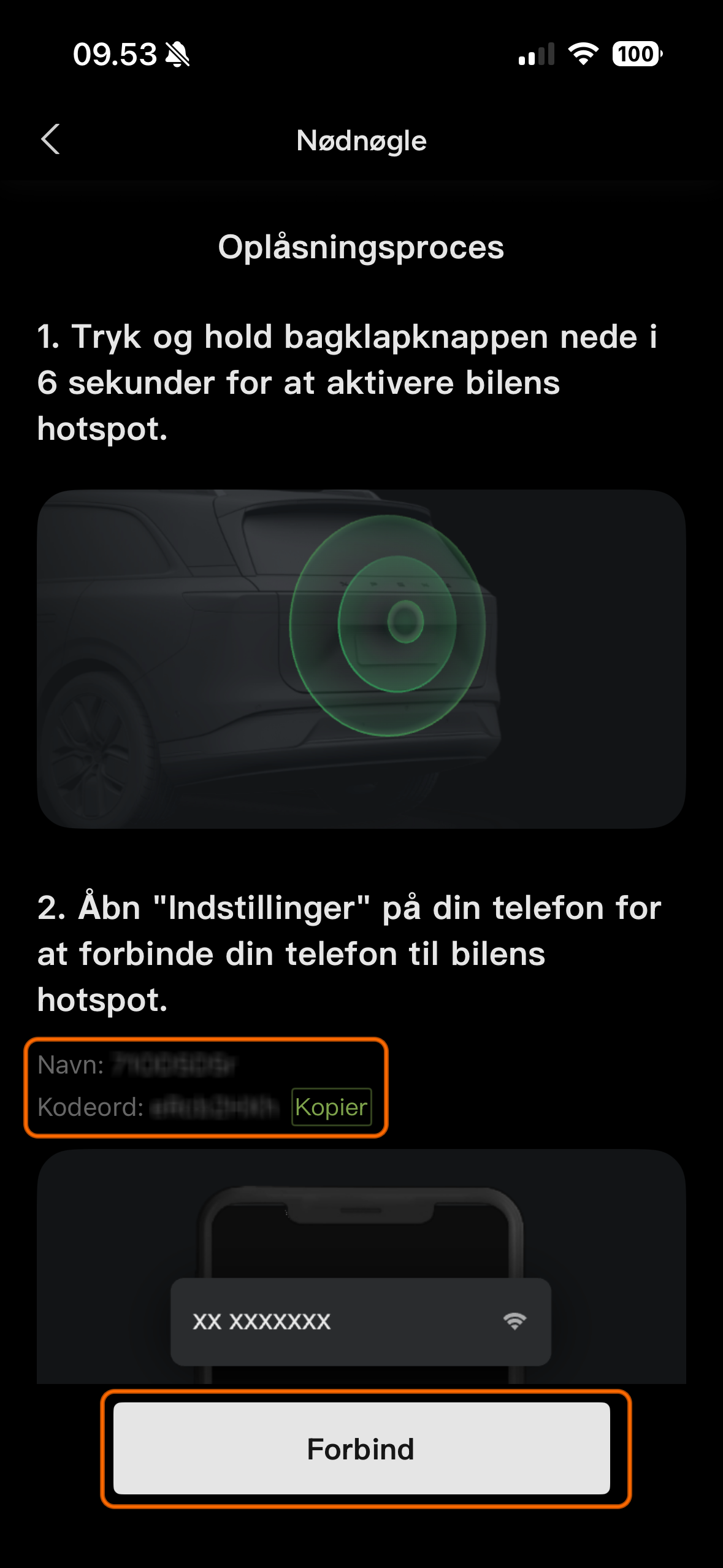
Connect to hotspot
The Wi-Fi name and password appear in the app. Join that network from your phone’s settings, then tap Connect.
Lock the vehicle
Locking uses a manual sequence and a specific safety order.
- Confirm automatic window closing when locking is enabled
- Open the driver’s door
- Press and hold the vehicle power-off (emergency off) button for 5 seconds
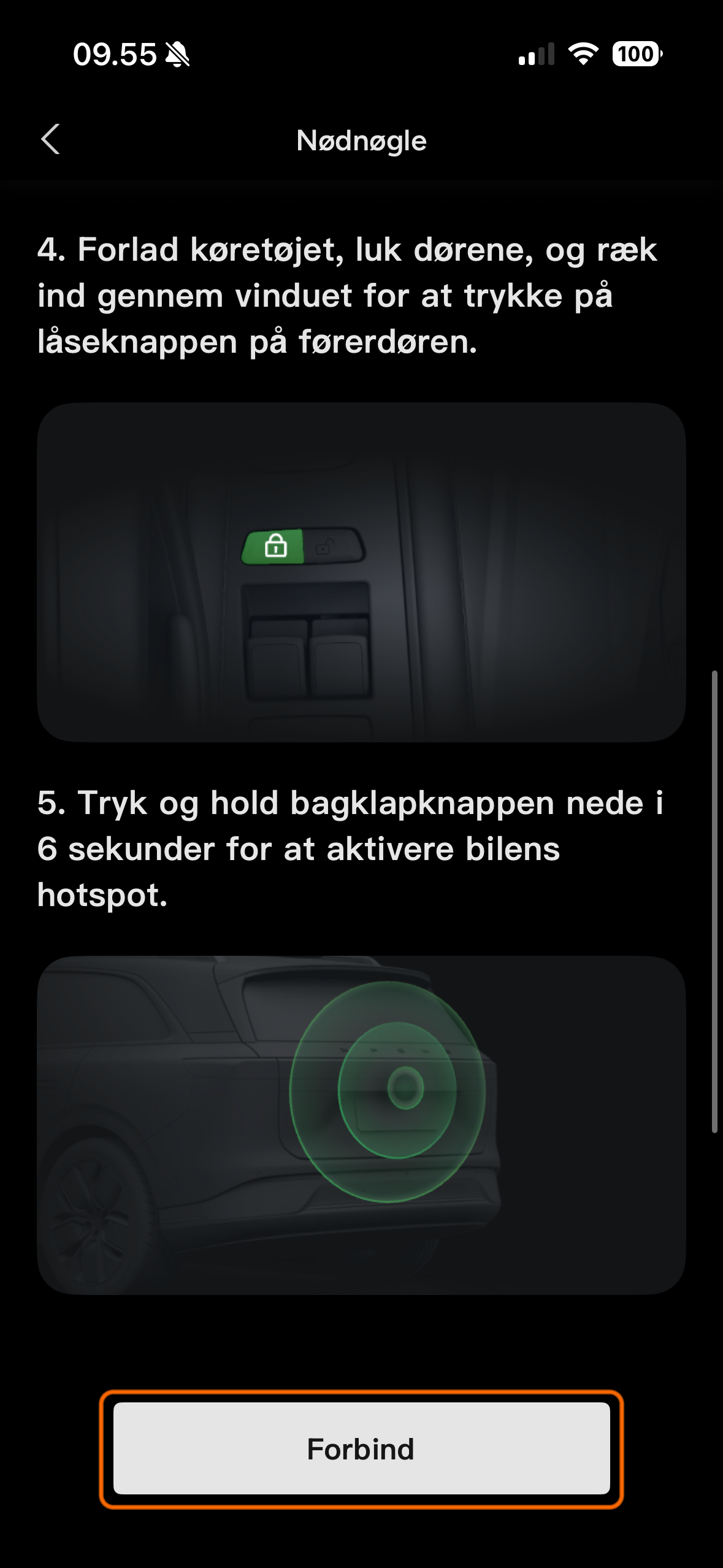
- Leave the vehicle and close the doors
- Reach in through the window and press the lock button on the driver’s door
- Press and hold the tailgate button for 6 seconds
- Connect the phone to the vehicle hotspot
- In the app, tap Connect
The vehicle should then be locked and the Emergency Key session ends.
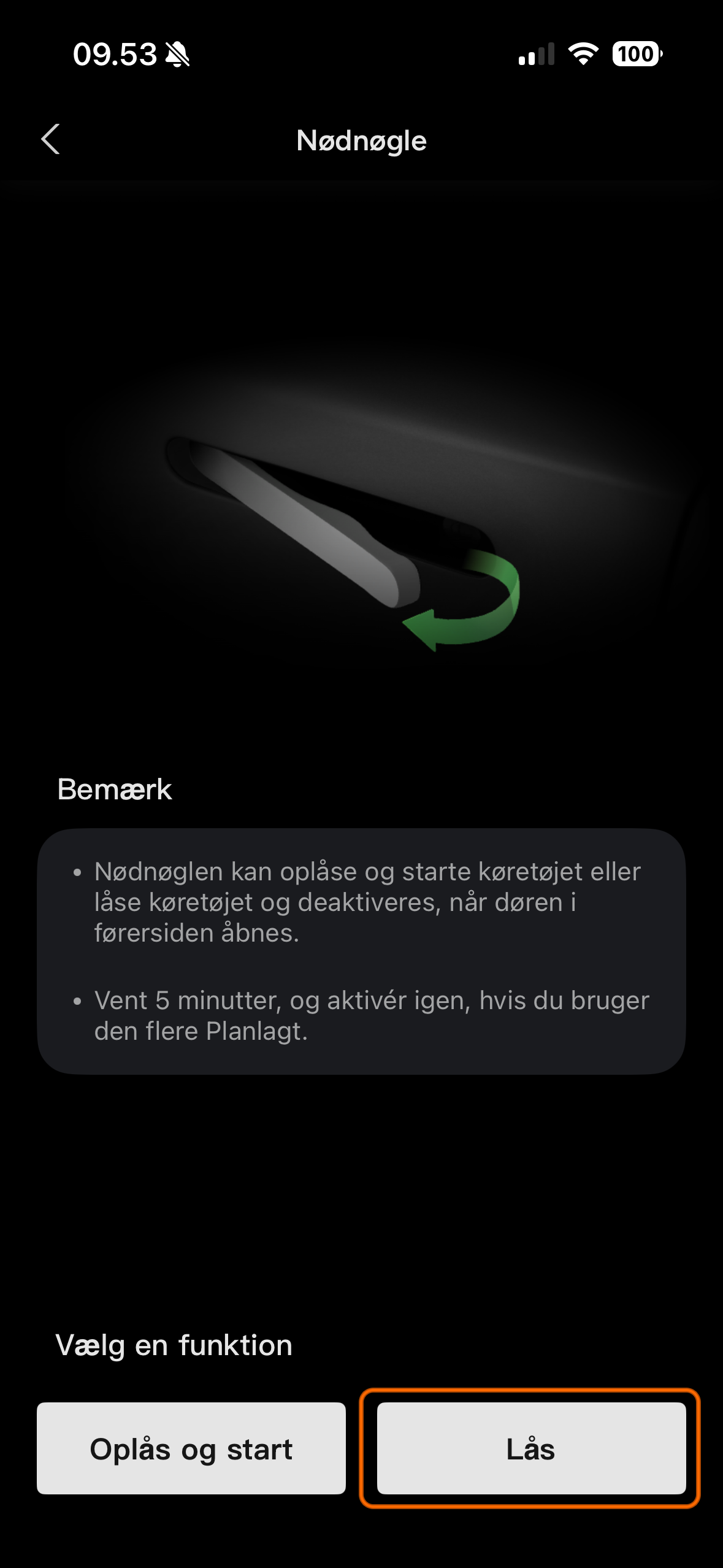
Lock menu
From Emergency Key, choose the lock workflow. Confirm that automatic window closing on lock is enabled first.
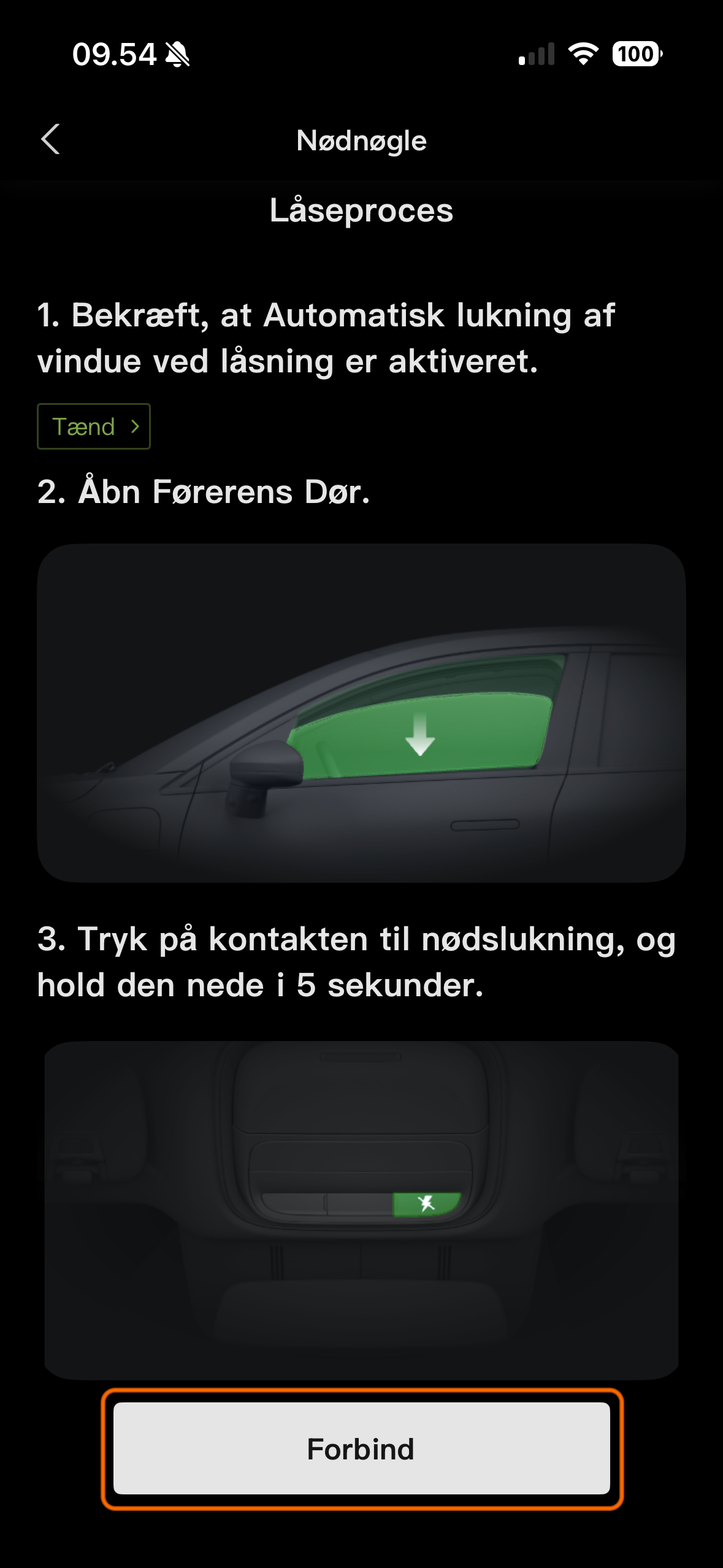
Power off and manual lock
Hold the power-off button for 5 seconds, exit, then press the button on the driver’s door before starting the hotspot sequence.
Hotspot for lock
Hold the tailgate button for 6 seconds, then join the vehicle hotspot from phone Wi-Fi settings.
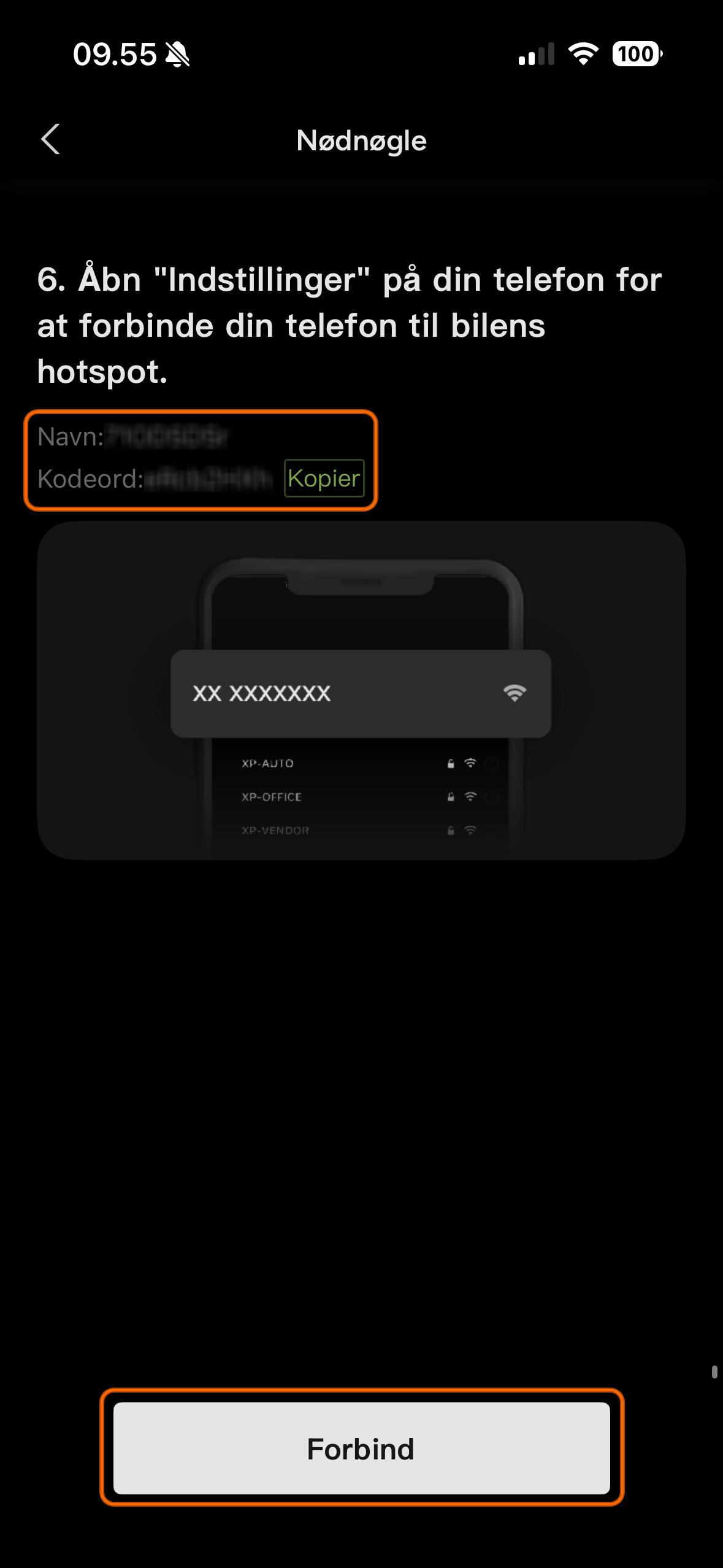
Finish in the app
Return to the XPENG app and tap Connect to complete the lock. The Emergency Key session then ends.
Important notes from XPENG
Read before using:
- Emergency Key is disabled automatically when the driver’s door is opened
- Wait 5 minutes before using the feature again
- Use only when normal methods do not work
- Contact XPENG customer support if the problem persists
Related: All Guides · Digital Key · XPENG App hub · XPENG App v3