


Applies to XOS 5.8+
As part of XOS 5.8, European XPENG owners gained access to the built-in Dashcam (Driving Recorder) feature. This guide covers setup, storage, folder layout, and how to export clips. Part of the Guides collection under Software.
According to XPENG release notes, the feature is available in European countries except Luxembourg, Portugal, Switzerland, and Austria.
Jump to: Equipment · Formatting · Activate · Folders · Recording logic · Capacity · XGUARD vs Dashcam · Playback · Examples
Equipment requirements
- USB storage device (USB 3.0 or faster recommended). USB 2.0 Hi-Speed devices should also work in theory (up to ~60 MB/s).
- Data port (G9 / P7 MY23): only USB-A under the center console is a data port; USB-C and the mirror USB-A are power only.
- Data port (G6, G9, P7 MY24): both USB-A and USB-C under the center console work as data ports.
- XPENG recommends avoiding external hard drives - they often draw more power than the USB port can supply. SSD or NVMe drives in a USB enclosure may work but are not officially tested.
Tested USB drives
A SanDisk Ultra Dual Drive Go 1 TB (USB 3.2 Gen 1, up to 400 MB/s read) was tested with continuous Dashcam recording while playing video and music - no issues. Dual USB-A/USB-C connectors; ~160 hours of recording with front + 360° cameras (~6 GB/hour).
SanDisk Ultra Dual Drive Go 1 TB (Proshop)
SanDisk Ultra Fit is a smaller, cheaper USB-A option several owners use successfully.
SanDisk Ultra Fit 512 GB (Proshop)
Another approach: a high-endurance microSD card in a USB adapter (common in aftermarket dashcams). Planned for future testing.
Cheap no-name USB drives are not recommended. Several ultra-low-cost 2 TB drives from marketplaces were tested; they were recognized at first but failed after extended use - likely fake capacity (e.g. 32 GB labeled as 2 TB). The car may stop overwriting old clips when real space runs out.
An older 32 GB USB 2.0 drive was reported as too slow during recording. Estimate: minimum write speed ~30 MB/s for Front + 360° mode. Use USB 3.0+ with solid write performance if the car warns the drive is too slow.
Formatting the USB drive
Format the drive on a computer before first use (Windows: right-click → Format). Supported file systems:
| File system | Supported | Max. file size |
|---|---|---|
| FAT16 | Yes | 2 GB |
| FAT32 | Yes (default when formatting in the car) | 4 GB |
| NTFS | Yes (recommended) | Practically unlimited |
| exFAT | No | - |
If you also store music or video on the same USB stick, format to NTFS first to avoid the 4 GB per-file limit in FAT16/FAT32.
Insert the formatted drive into the correct data port - the vehicle detects it automatically.
How to activate the Dashcam
- Insert the USB drive.
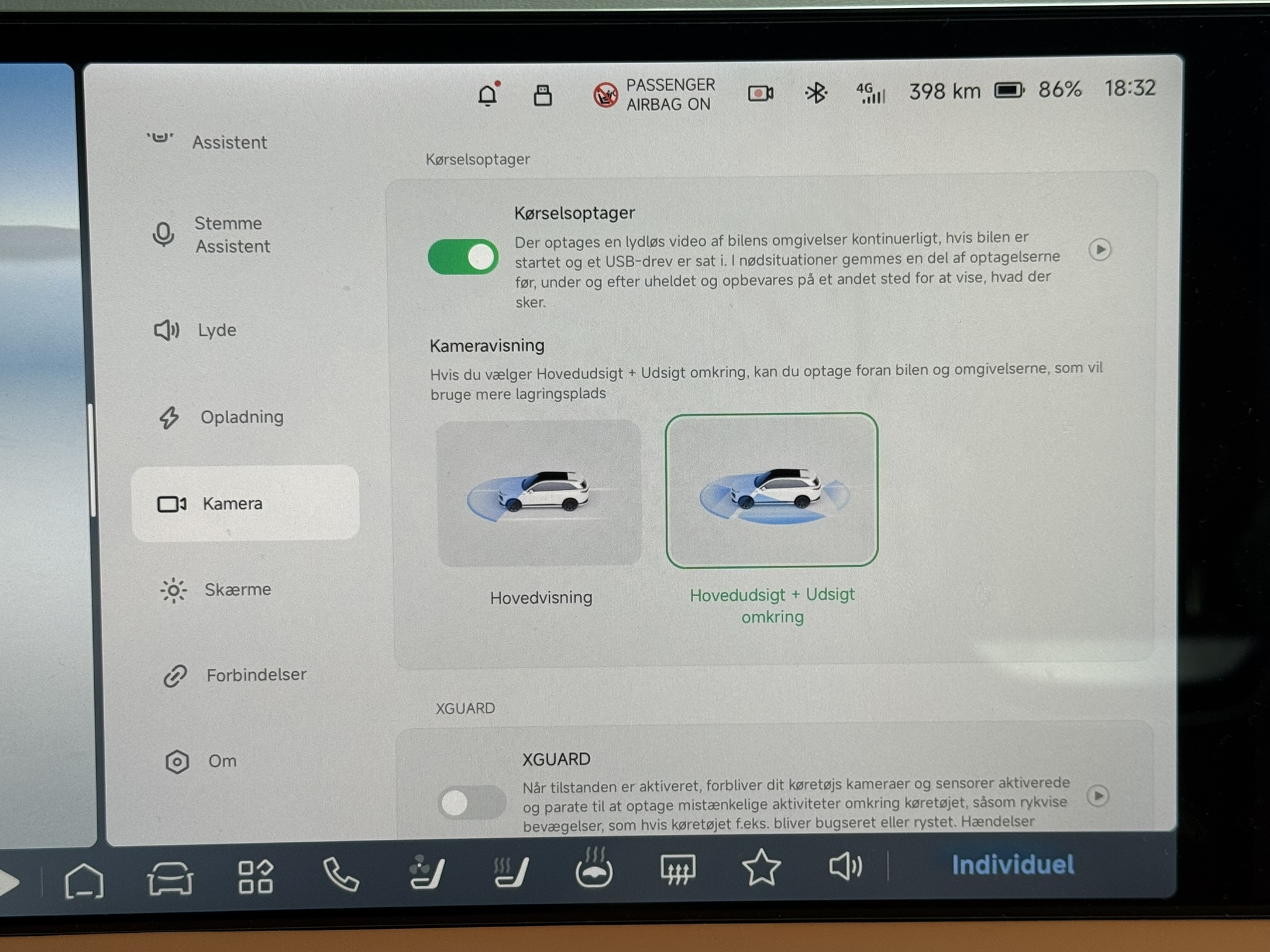
- Open the Camera menu in the infotainment system.
- Enable Driving recorder.
- Select recording mode: Front or Front + 360° view.
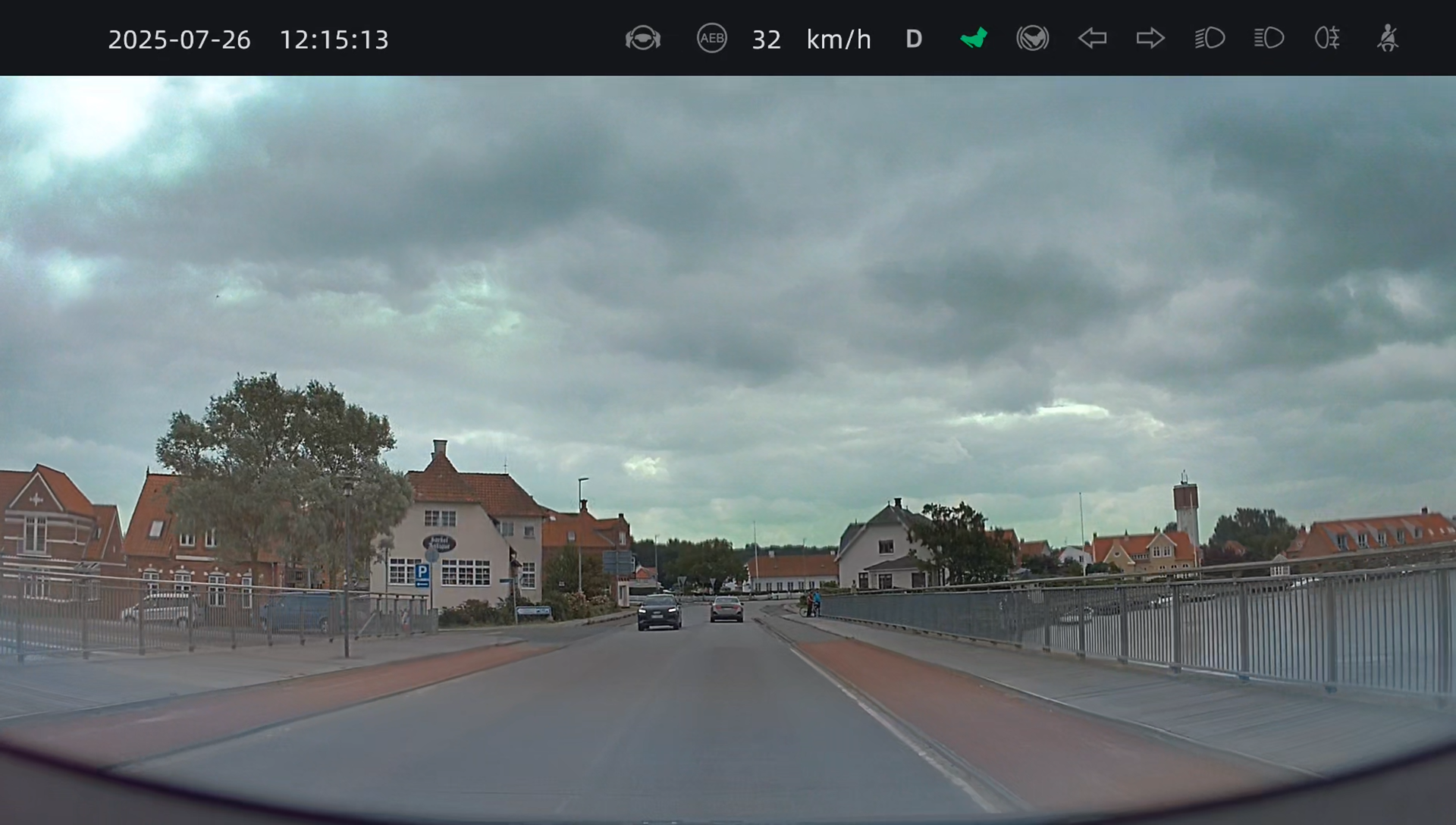
Front-camera clips overlay date, time, speed, XPILOT status, and related data. Location/GPS is not saved in the current version - this has been submitted as a feature request.
Folder structure on the USB drive
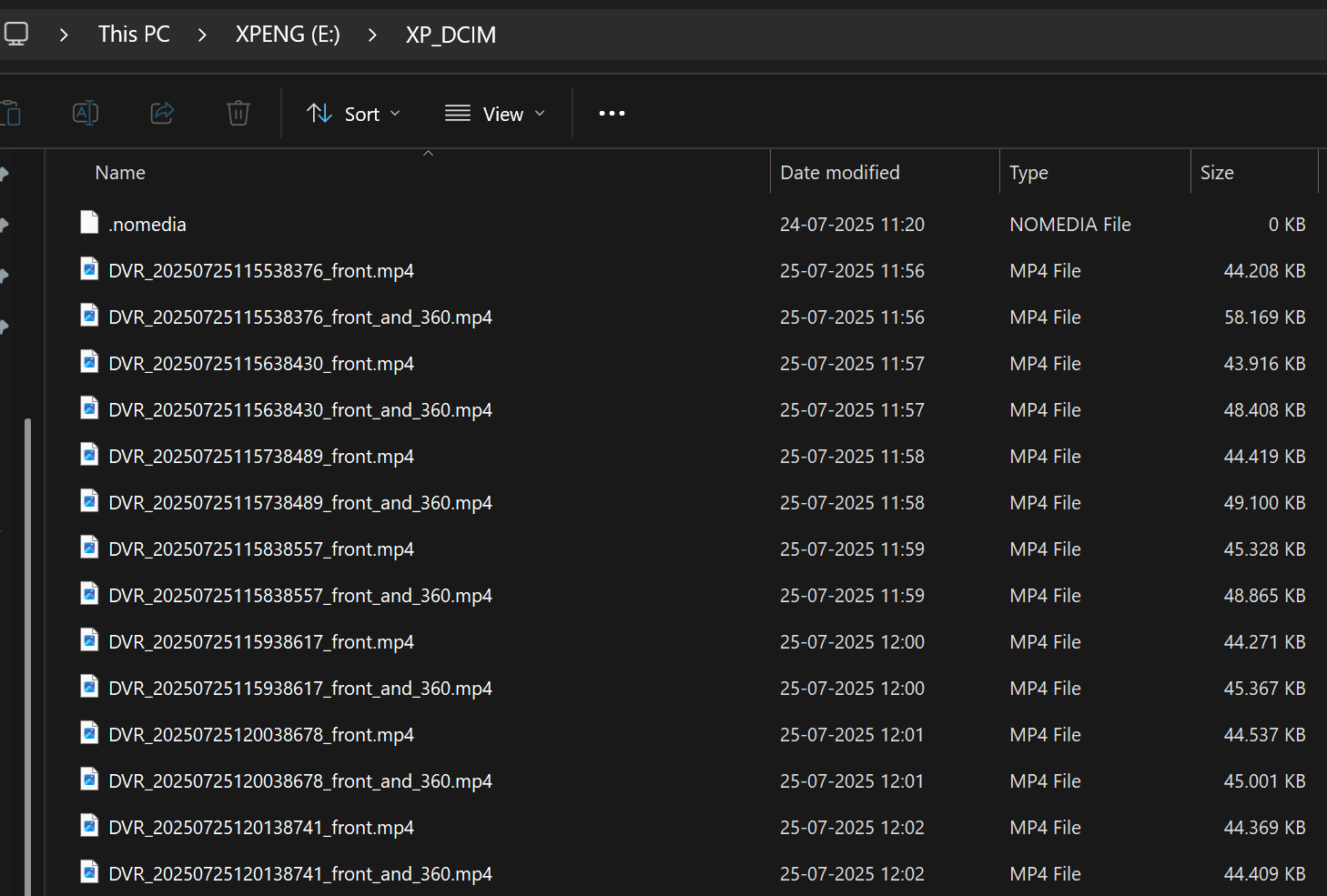
When the vehicle detects the drive, it creates folders including:
- XP_DCIM - continuous dashcam recordings (loop overwrite)
- XP_EMER_DCIM - locked or event-triggered clips (e.g. AEB activations); not overwritten
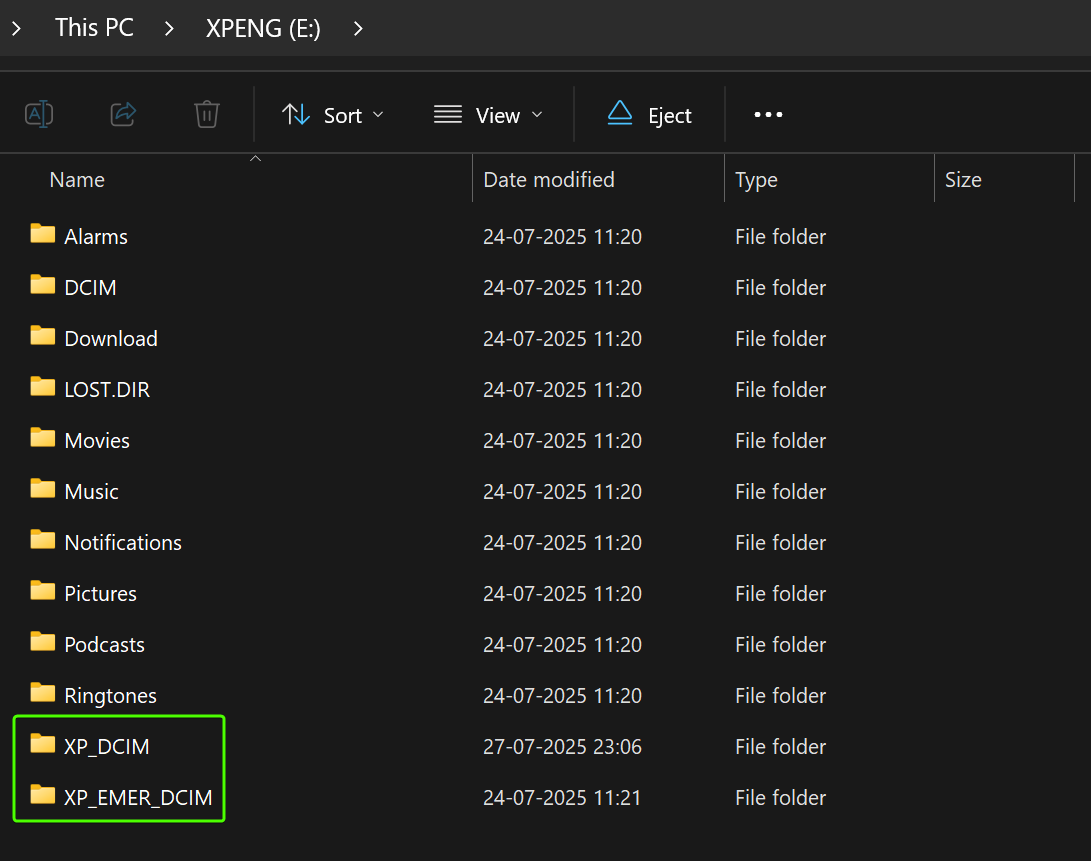
Additional folders resemble a standard Android-style layout and are created by the vehicle automatically.
Recording logic
- One-minute clips in a continuous loop; oldest clips in XP_DCIM are overwritten when space is low.
- Event clips in XP_EMER_DCIM are protected from overwrite.
- All clips are MP4 (1920 × 1080, 30 fps).
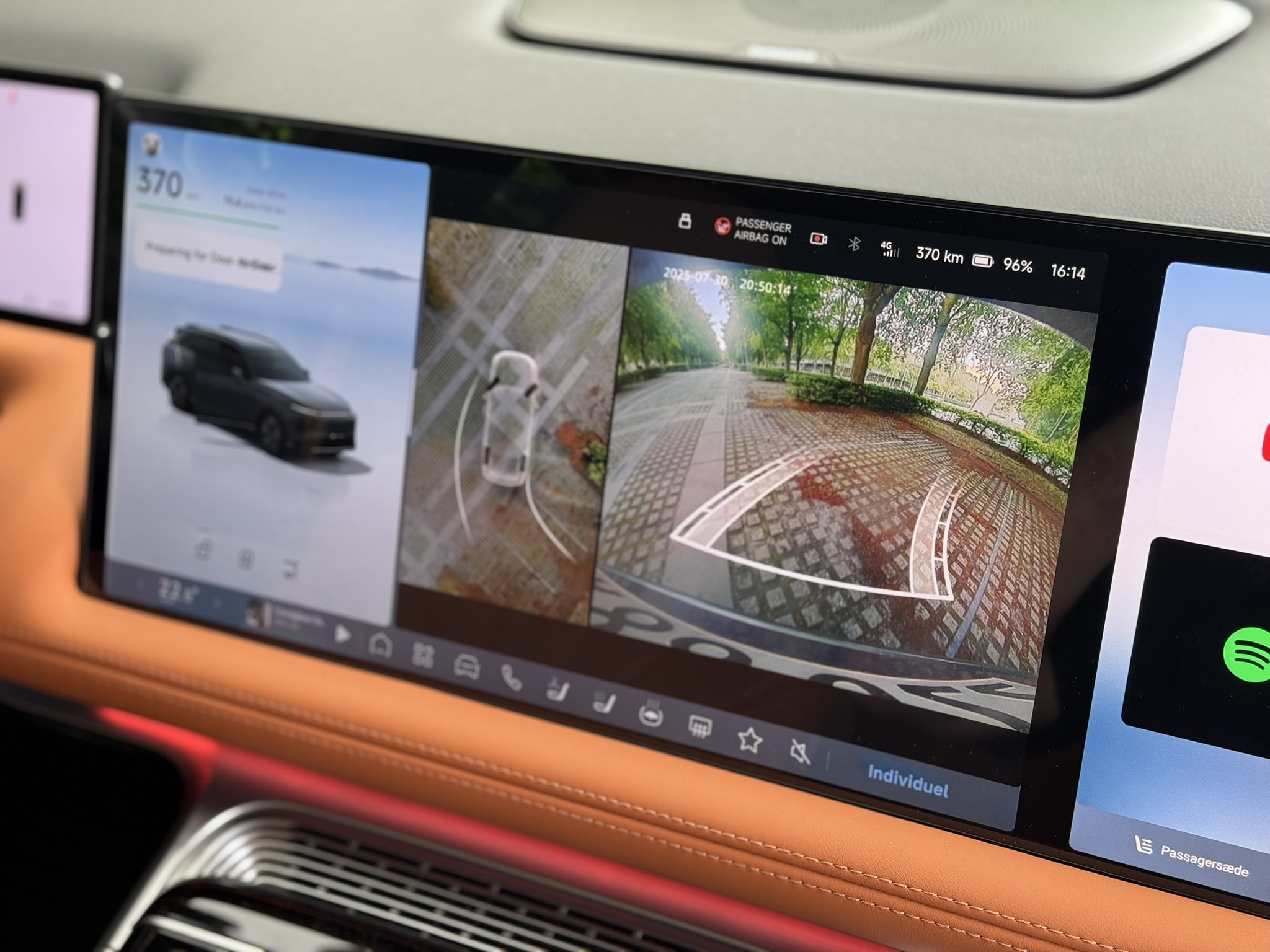
- In 360° mode, the view switches to the rear side camera when using turn signals, and to a top-down “helicopter” plus rear view when parking.
| Recording type | Size per minute |
|---|---|
| Front | ~40 MB |
| 360° view | ~50-60 MB |
| Front + 360° | ~100 MB (~6 GB/hour) |
Capacity vs. recording time
Estimates: front only ≈ 2.4 GB/hour; front + 360° ≈ 6 GB/hour.
| Capacity | Front only | Front + 360° |
|---|---|---|
| 32 GB | ~13 h | ~5 h |
| 64 GB | ~27 h | ~11 h |
| 128 GB | ~53 h | ~21 h |
| 256 GB | ~107 h | ~43 h |
| 512 GB | ~213 h | ~85 h |
| 1 TB | ~427 h | ~171 h |
XGUARD vs. Dashcam
Dashcam records while you drive, onto the USB stick. XGUARD (formerly Sentinel Mode) records while the car is parked, onto the car’s internal storage. USB dashcam settings do not affect XGUARD clips.
XGUARD is switched on from the car’s screen, through an XCOMBO or in the mobile app. On a shake event the car sends a push notification to the app, but the recordings live in the car’s Camera menu under XGUARD recordings and cannot be viewed in the mobile app. The manuals’ passages about desensitized recordings in the app and an “Intelligent Imaging” menu are translated from the Chinese manual and do not describe the European app.
Playback and export
- Dashcam and XGUARD clips play back in the car only - not in the XPENG mobile app.
- Copy individual clips to your phone from the infotainment screen (follow the in-car export guide in the recordings app).
- Remove the USB drive and review XP_DCIM / XP_EMER_DCIM files on a computer.
Check local laws on dashcam use, privacy, and recording in public spaces. This guide is for technical setup only - not legal advice.
Recording examples
Sample clips recorded with the built-in Dashcam (XPENG G9 MY23):
Front camera (day):
Video: xpeng.guru
Front + 360° (day):
Video: xpeng.guru
Front camera (night):
Video: xpeng.guru
Front + 360° (night):
Video: xpeng.guru
Related: All Guides · XOS 5.8 release notes · XOS 5.8.7 release notes
Changes to this page (1)
- XGUARD: how it is switched on, what the app shows, and why the recordings stay in the car.